How to Set Up Basecamp for an Agency
If you run an agency, your Basecamp account is really a collection of client accounts living under one roof. Each client wants their own space, their own files, their own thread of conversation. Your team wants to see what’s due, what’s blocked, and what’s waiting on a client to reply. Basecamp for agencies works well for the first part out of the box. The second part, the at-a-glance status of work in motion, is where most agencies start bolting on spreadsheets. This guide covers a clean Basecamp agency setup using the native tools first, then shows where a lightweight layer fills the gaps for client work.
How should an agency structure Basecamp projects?
The rule that survives growth is one project per client engagement. Not one project for “all clients,” not one project per team member. One project equals one client (or one distinct retainer or build with that client).
Here’s why that holds up:
- Access control is per project. You can add a client to their own project as a client-side user and they never see anyone else’s work. Try to share one mega-project across clients and you’re one mis-click away from a client reading another client’s invoice thread.
- Archiving is per project. When an engagement ends, you archive that project and the whole history stays intact and searchable. Nothing leaks into your active list.
- Templates are per project. Basecamp has project templates built in. Once you’ve designed your ideal client project once, you save it as a template and spin up the next client in seconds.
If a single client has two very different bodies of work running at once, a website rebuild and an ongoing social retainer, split those into two projects rather than cramming both into one. The projects list stays readable, and each one keeps its own clean to-do structure.
Build your client project template once
Before you create a project for every client, design the one you’ll clone. Open a new project, set it up the way you wish every client looked, then save it as a template. Basecamp does this natively, no add-on needed.
A solid agency template usually includes:
- A message board for client-facing announcements and approvals.
- A to-do set broken into the phases of your delivery, for a website that might be Discovery, Design, Build, Review, Launch. Each phase is its own to-do list.
- A docs and files section for brand assets, contracts, and the SOW.
- A schedule for the launch date and any client-facing milestones.
- Card Tables if you run a stage-based pipeline. Basecamp’s Card Tables are a separate kanban-style tool with columns, good for things like a content pipeline (Idea, Drafting, Client Review, Scheduled, Published) where work flows left to right.
To-do lists and Card Tables answer two different needs. To-do lists are best for fixed checklists of work that has to get done. Card Tables suit work that moves through stages. Most client projects use both. If you’re not sure which fits a given workflow, we wrote a full breakdown in Basecamp Card Table vs To-Do List.
Where Basecamp leaves agencies hanging
Native Basecamp is excellent at keeping client work organized and communication clean. It’s deliberately light on the project-management layer that agencies lean on hardest, and the piece it does ship costs extra:
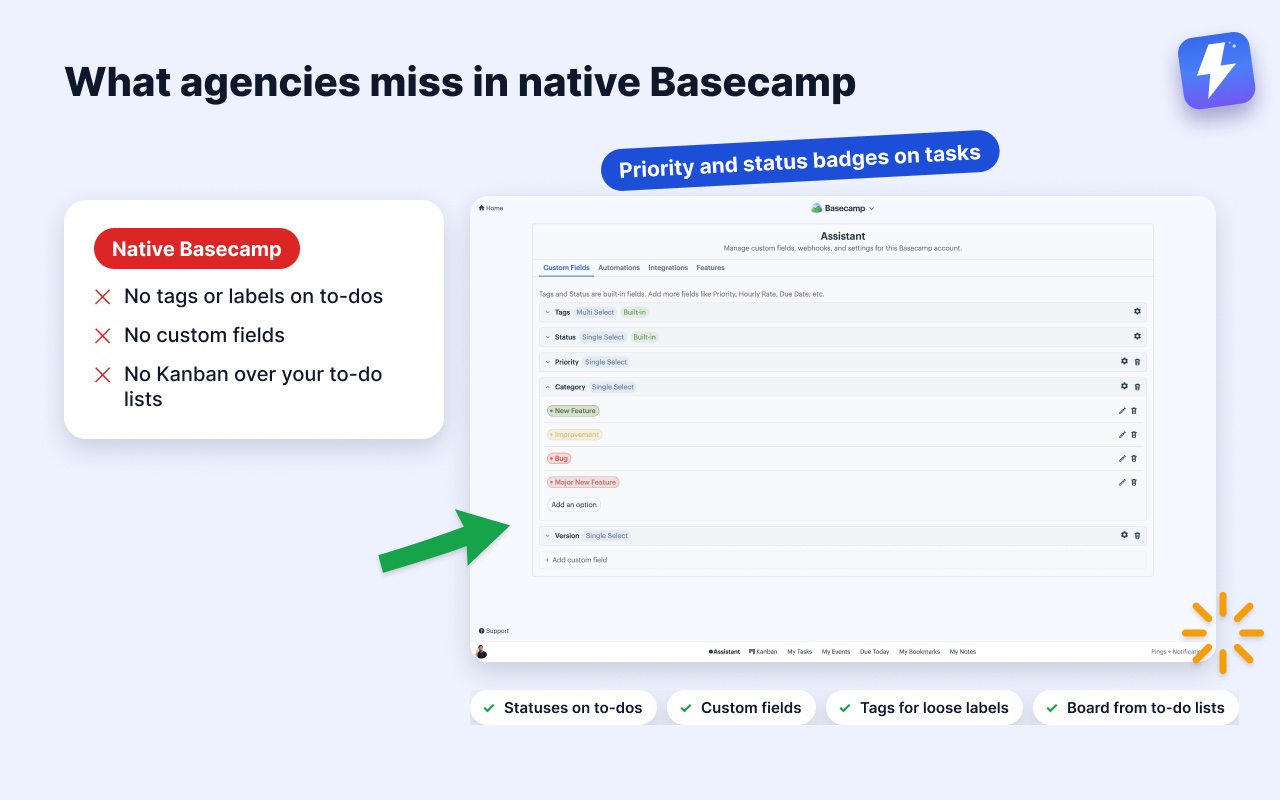
- No tags or labels on to-dos. You can’t mark a to-do “blocked,” “waiting on client,” or “rush” in a way you can filter on later.
- No custom fields. There’s nowhere to record a priority, an effort estimate, or which client deliverable a task belongs to as structured data.
- No Kanban view over your to-do lists. Card Tables give you columns, but your phase-based to-do lists stay as flat checklists. You can’t see your Discovery / Design / Build lists as a board.
- Time tracking needs Pro or Unlimited, and stops at hours. Basecamp’s Timesheet has been there since June 2024: a timer on to-dos and cards, hours logged as 2:30 or 2.5, and a report under Activity you can filter by project, person or date range and export to CSV, all hidden from clients. It comes with the Pro ($99/month) and Unlimited plans; Free, Freelancer and Studio don’t include it. What it won’t do is invoicing, budgets or rate cards, so agencies that bill hours still reach for Harvest or Everhour.
None of these are dealbreakers. Plenty of agencies run on plain Basecamp for years. But once you’re juggling six clients and someone asks “what’s actually waiting on me right now,” scanning six projects by eye gets old fast.
Adding a status layer for client work
Assistant for Basecamp is a browser extension that adds these missing pieces directly inside Basecamp. The work stays in Basecamp. Nothing moves to a separate tool, and your clients never see the extension. Anyone installs it and connects the Basecamp account once, and the whole team gets the features, unlimited seats on one admin’s bill.
For an agency, three pieces matter most.
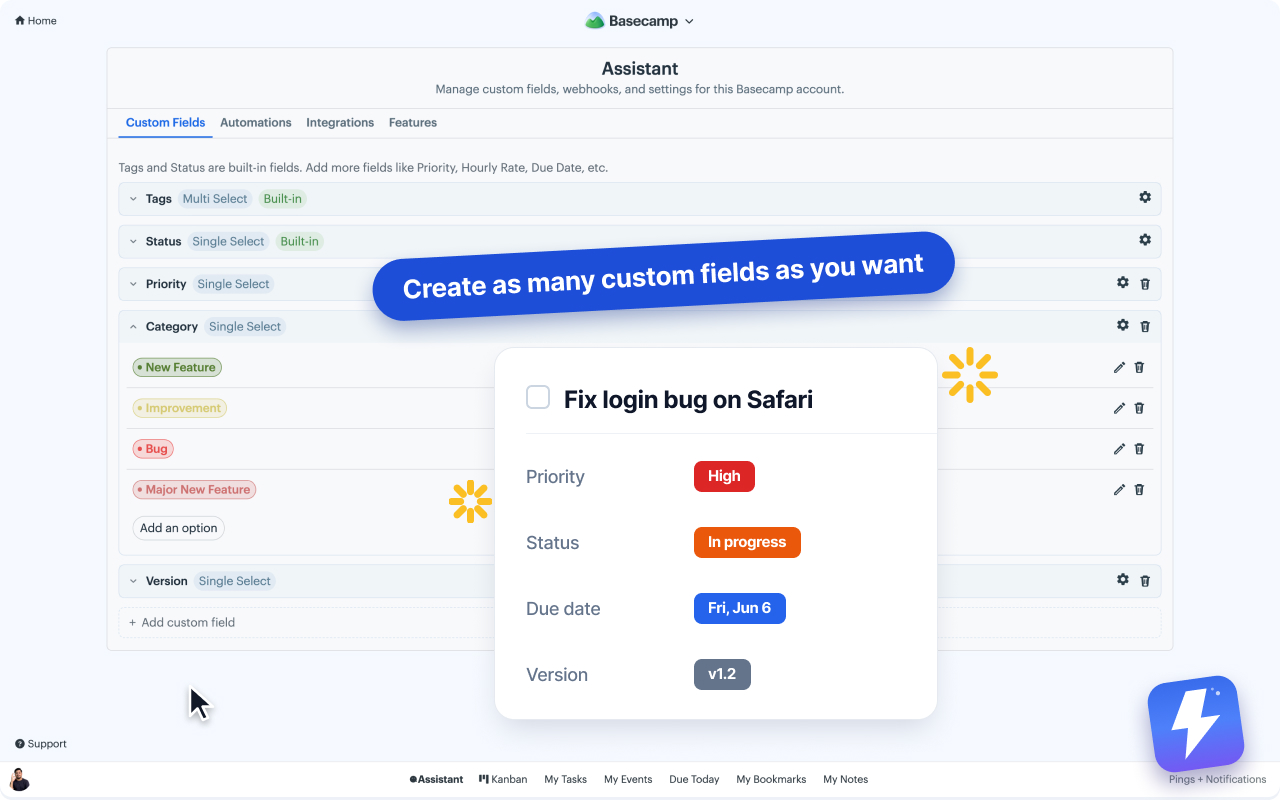
Statuses on to-dos. You can give any to-do, card, or message a status like Waiting on client, In review, or Blocked. These show up as colored badges, so a glance at a client project tells you what’s stalled and why. We cover the full setup in how to add custom statuses to Basecamp tasks.
Custom fields for the things agencies track. You define a field once and apply it across to-dos, cards, and messages. Common agency fields:
- A Priority single-select (Low / Medium / High / Rush) with each option color-coded.
- A Deliverable field tying tasks to a billable line item.
- A Estimate number field for hours, which you can sort on.
- A Client approval date date field, separate from Basecamp’s due date.
Each value saves to Basecamp and renders as a badge. The full walkthrough is in how to add custom fields to Basecamp.
Tags for the loose stuff. When a label is too informal to deserve a whole field, tags handle it: rush, needs-assets, upsell-opportunity. You can add tags to to-dos and cards and filter a project down to just tagged items.
A Kanban board for each client project
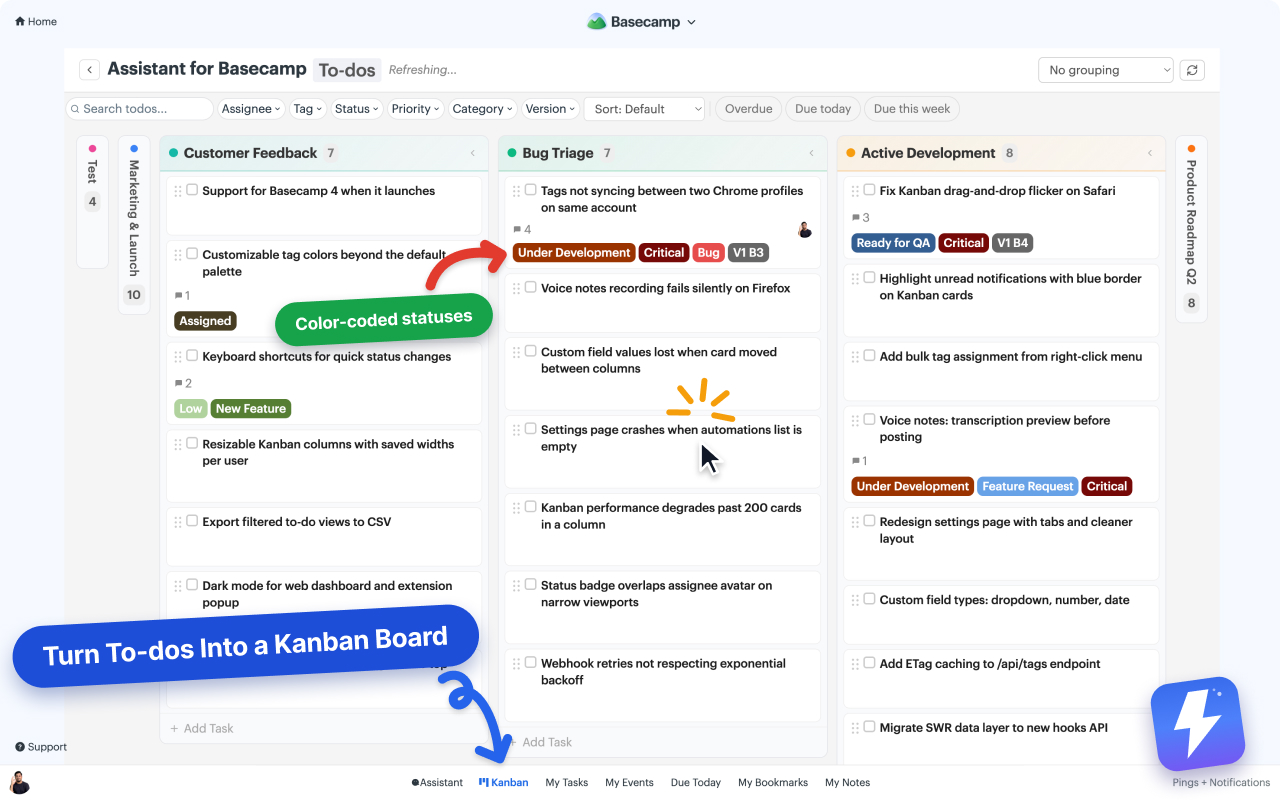
This is the part agencies feel most. Assistant turns each project into a Kanban board where every to-do list becomes a column. Your Discovery / Design / Build / Review / Launch lists, the structure you already built, become the board itself. There are no preset Backlog / Done columns to map your work into. Your project’s shape is the board’s shape.
On top of that board you get the controls agencies actually use:
- Grouping to rebuild the board by assignee, tag, or status, so you can see every designer’s column or split Waiting on client from active work.
- Column colors and collapse to keep a busy board readable.
- A split-view detail panel so you can open a task without losing the board.
- Board filters and a project picker to jump between client boards.
If you want the basics of the board first, start with how to add a Kanban board to Basecamp.
One board per client, or one across all of them
The board isn’t stuck at one project. It runs over a single to-do list or card table, over a whole project, or over every project in the account at once. That widest setting is the roll-up agencies ask for: every client’s work in motion on one screen.
You don’t have to take all of it. The picker searches your projects and clients, and you select several projects or several clients, not a mix of the two. Pick one client and the board becomes that client’s whole book of work, the website rebuild and the social retainer side by side, with nobody else’s projects on screen. Save that arrangement under a name and it’s there tomorrow. Views are stored per person on our side, so the board you built at your desk is waiting when you sign in from a laptop.
To-dos and cards always get separate boards. That one is deliberate: they behave differently in Basecamp, and a board holding both would be worse at each.
The honest limit now is reporting, not reach. A board over every client tells you what’s moving and who has it. It won’t tell you how many hours went to one client last month, and grouping and the pivot view rearrange work rather than chart it. Assistant also runs only inside Basecamp’s own pages, in desktop Chrome or Firefox, so there’s nothing to open on a phone between meetings. Tracked has a standalone dashboard that works on a tablet, and if that’s how your agency runs, that’s the honest call. Full side-by-side in Assistant for Basecamp vs Tracked.
Cutting the repetitive busywork
Agency work is full of the same small moves repeated across every client: when a task hits Client Review, ping the client; when a deliverable is marked approved, mark the to-do complete. Assistant’s automations handle these inside Basecamp. A rule watches for a Basecamp event or a custom-field change and then runs an action, set a field, attach a tag, assign someone, complete a to-do, or post a comment.
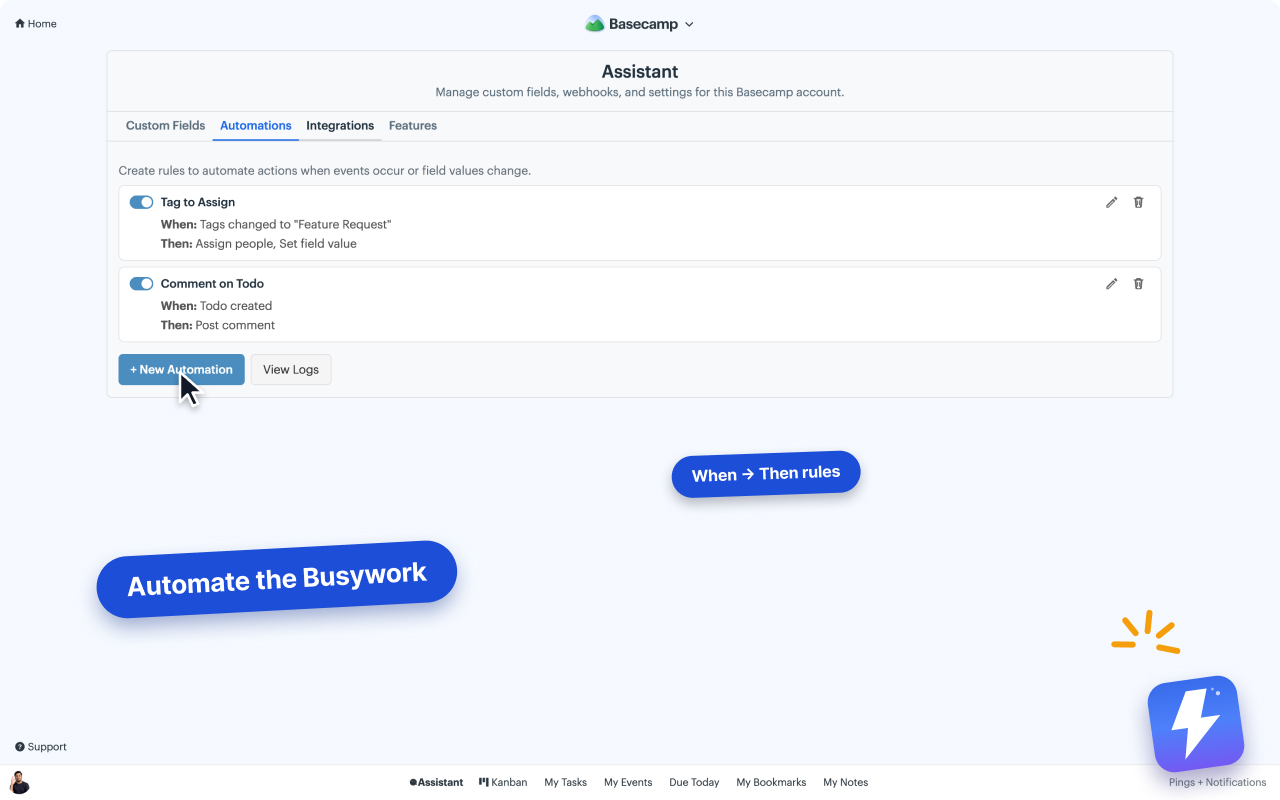
A caveat worth stating plainly: these automations react to Basecamp’s own events and Assistant’s field changes. They don’t accept inbound webhooks from Zapier or Make, so this isn’t a bridge to outside apps. Inside Basecamp, though, it removes the manual status-shuffling. The setup is in how to automate Basecamp without Zapier.
Running multiple clients without checking every project
One more piece matters when you’re spread across many client projects:
Unread highlights and overdue tracking. Items with new activity get a border, so the client that just replied stands out without you opening every project. And Basecamp’s built-in Overdue to-dos report buckets everything past its due date across projects, which is how you catch a slipping client deadline before the client does. More in how to spot unread updates in Basecamp and how to track overdue to-dos in Basecamp.
The setup, start to finish
- Create one project per client, or save a client project template and clone it.
- Structure each project’s to-do lists by your delivery phases. Use Card Tables for stage-based pipelines.
- Add client-side users to their own project only, never a shared mega-project.
- Install Assistant for BasecampAssistant for Basecamp, connect the account once, and the team gets statuses, custom fields, tags, Kanban, and automations.
- Open the board on one client project, on one client’s full set of projects, or on the whole account, and save the setups you keep returning to as named views.
Assistant for Basecamp is $29/month or $290/year for unlimited seats, with a 7-day free trial and no card needed to start. If you want the install steps first, the getting started guide and the Kanban help doc cover everything. Set up one client project the way you want it, clone it for the next, and your agency runs on the structure you already have instead of a spreadsheet bolted to the side.
Useful? Tell Google you want more of this.