Tags, statuses & custom fields
Give Basecamp the fields it never had.
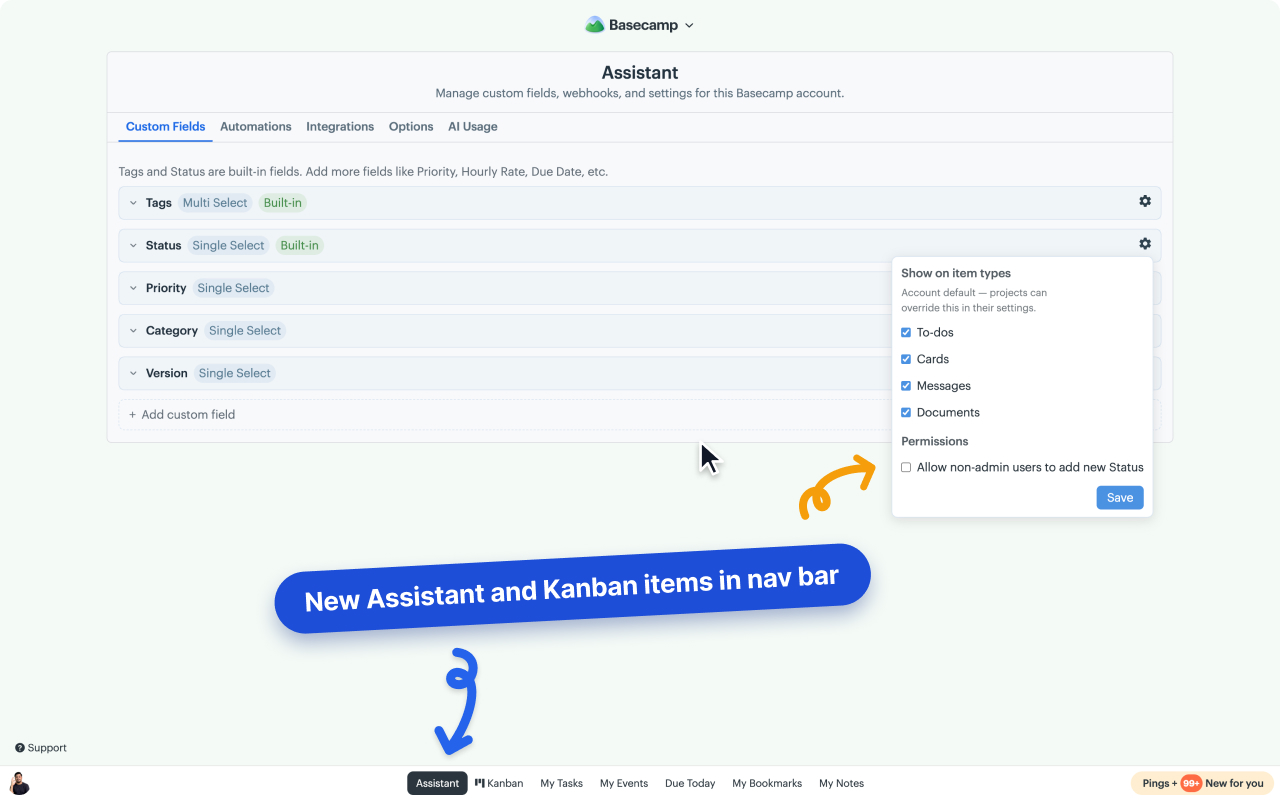
Tags, workflow statuses, priority, client, effort, launch date. Basecamp to-dos can't hold any of it. Assistant adds real custom fields to your to-dos, cards, messages, documents, and files, shown as colored badges everyone can read at a glance.
Five field types. Colored badges everywhere.
Build the fields your workflow needs and apply them to any to-do, card, message, document, or file. Values render as colored badges on the item itself, so priority and status are readable from the list without clicking in.
Single select
One value from a colored list. Priority, T-shirt size, environment.
Multi select
Several values at once. Departments involved, platforms affected.
Text
Free-form context: client name, ticket reference, one-line notes.
Number
Effort points, budget, hours estimated. Anything you'd want to compare.
Date
Launch dates, review deadlines, renewal dates, beyond the one due date Basecamp gives you.
Tags & Status, built in
Two ready-made fields so you can start labeling and tracking workflow states immediately.
Per-project control
Every project gets exactly the fields it needs.
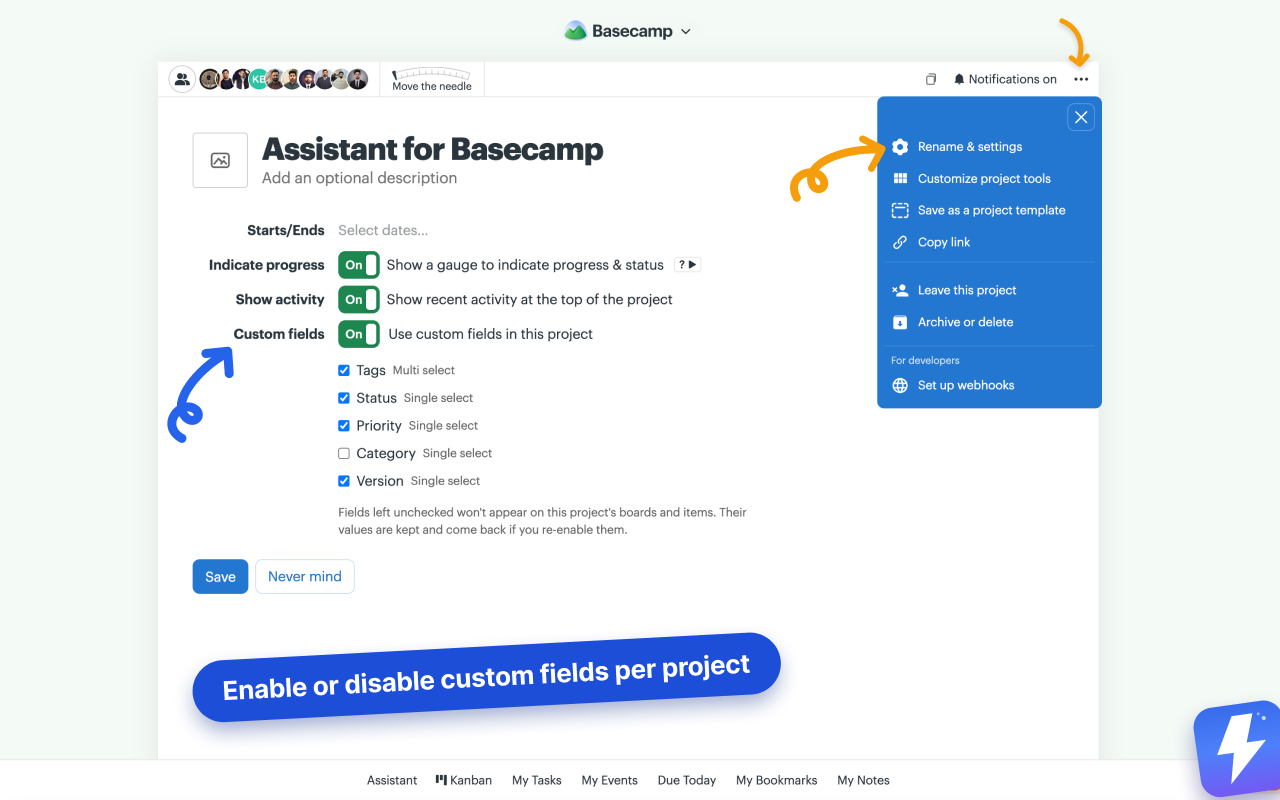
Admins choose which fields each project uses, straight from Basecamp's project settings. A client-facing project stays clean while your dev board runs Priority, Category, and Version.
- ✓ One toggle in the project's own Rename & settings page
- ✓ Uncheck individual fields; values are kept and restored on re-enable
- ✓ Fields you create later stay visible everywhere by default
Fields aren't labels. They're leverage.
Once your items carry real data, every other view gets sharper.
Group the Kanban by any field
Group the board by Priority, Category, or Status on the Kanban board, with columns in your option order and colors.
Filter to what matters
"High-priority items assigned to Sara" is two clicks, on the board and in the Docs & Files grid.
Automate on field changes
Rules that react when a field changes: set a status, add a tag, assign someone, post a comment.
Step-by-step guides: add custom fields · add tags · add statuses · filter and group
The honest comparison
Three ways to add custom fields to Basecamp.
Basecamp doesn't ship fields, so teams solve it one of three ways. Here's what each really gets you.
Naming conventions
Prefix the to-do name: [P1] [Acme] Fix onboarding. Free, and some tools formalize it. Everhour, for instance, reads structured text out of task names into its time reports.
The catch: your data lives inside a title. Nothing is colored, nothing filters, and a typo quietly forks a category.
Tracked's labels
Tracked adds one flat list of colored labels to cards, plus a numeric estimate.
The catch: one pool holds everything, so Priority: High and Client: Acme compete in the same list, with no text or date values behind them.
Real typed fields
Assistant adds single select, multi select, text, number, and date fields with colored badges, admin-managed options, and per-project control.
Fields also do work: they group the Kanban board, stack into filters, and trigger automations when a value changes.
Weighing the extensions? Read the full Assistant vs Tracked comparison.
Custom fields questions, answered.
Does Basecamp have custom fields? +
No. A Basecamp to-do is a name, an assignee, and a due date. There's no priority, status, category, or any other field, and nothing to filter or report on. Assistant adds all of that on top of your existing to-dos, cards, messages, documents, and files.
Can you add custom fields to Basecamp without an extension? +
Only by convention. Teams prefix to-do names like [P1] [Acme] Fix onboarding, and some tools read structured text out of task names for reporting. It holds until someone renames a task: the values aren't colored, can't be filtered, and a typo quietly creates a second category.
What field types can I create? +
Single select, multi select, text, number, and date. Select fields get colored options, and values render as colored badges right on the item, in lists, in Basecamp's My Tasks, on the Kanban board, and in the Docs & Files grid.
Do custom fields work on Basecamp Card Tables? +
Yes. Fields render as colored badges on card-table cards, exactly as they do on to-dos and messages, and the Kanban board can group and filter cards by any select-type field. An admin picks which item types each field appears on.
Do custom fields work in Docs & Files? +
Yes, on documents and on uploaded files. Set a field on either, and the value shows as a colored pill on its card in the Docs & Files grid, so you can tell a signed contract from a draft without opening it.
Can different projects use different fields? +
Yes. Admins choose which fields each project uses from Basecamp's own project settings page. Turn custom fields off for a project entirely, or uncheck individual fields. Values are kept and come back if you re-enable a field.
What's the difference between tags, statuses, and custom fields? +
Tags and Status are built-in fields that come ready to use: tags for flexible labels, status for workflow states. Custom fields are the general tool when you need something specific, like Priority, Client, Effort, or a launch date.
How is this different from Tracked's labels? +
Tracked keeps one flat label list plus a numeric estimate. Assistant gives each concept its own field with its own type and colors: Priority stays a single select, Client stays text, Launch date stays a date. Fields can also group the board and trigger automations when a value changes.
Where is the field data stored? +
Field definitions and their values are stored by Assistant, keyed to the Basecamp items they belong to, and layered onto Basecamp in your browser. The messages, to-dos, and files themselves stay in Basecamp; the extension reads them live from Basecamp's API rather than copying them into our database.
What does it cost? +
$29/month or $290/year for your whole Basecamp account, unlimited users. Custom fields are included, along with the Kanban board, tags, statuses, and automations. 7-day free trial, no card needed.
Fields your Basecamp has been missing.
Install the free extension and add your first custom field in minutes. 7-day trial, no card needed.