How to Add Tags to Basecamp To-dos and Cards
You want to mark a few to-dos as Bug, Urgent, or Waiting on client, then pull up everything with that label later. In most tools you’d reach for tags. In Basecamp you can’t, because Basecamp tags don’t exist as a native feature. There’s no field for labels on a to-do, no colored chips on a card, no way to filter a list down to one keyword. This guide shows how to add real Basecamp tags to to-dos, cards, and messages, color-code them, filter by them, and group your board by them.
Does Basecamp have tags?
No. Basecamp has no native tagging on to-dos, cards, or messages. You can rename things, drop a keyword into the to-do text, or use hashtag-style words you search for later, but none of that gives you a clickable, colored label you can filter on. Card Tables (Basecamp’s separate kanban-style tool) have columns and a color per column, but that’s a column property, not a tag you attach to an individual card.
So the common workarounds people use are:
- Typing
[BUG]orURGENT:into the to-do title - Creating a separate to-do list per category and moving items between them
- Putting the keyword in a comment and relying on search
These work until they don’t. Title prefixes clutter the list and break when someone edits the text. Category-based lists mean one item can only live in one place. And search finds the word, but it can’t show you a count, a color, or a board you can filter down to just that group.
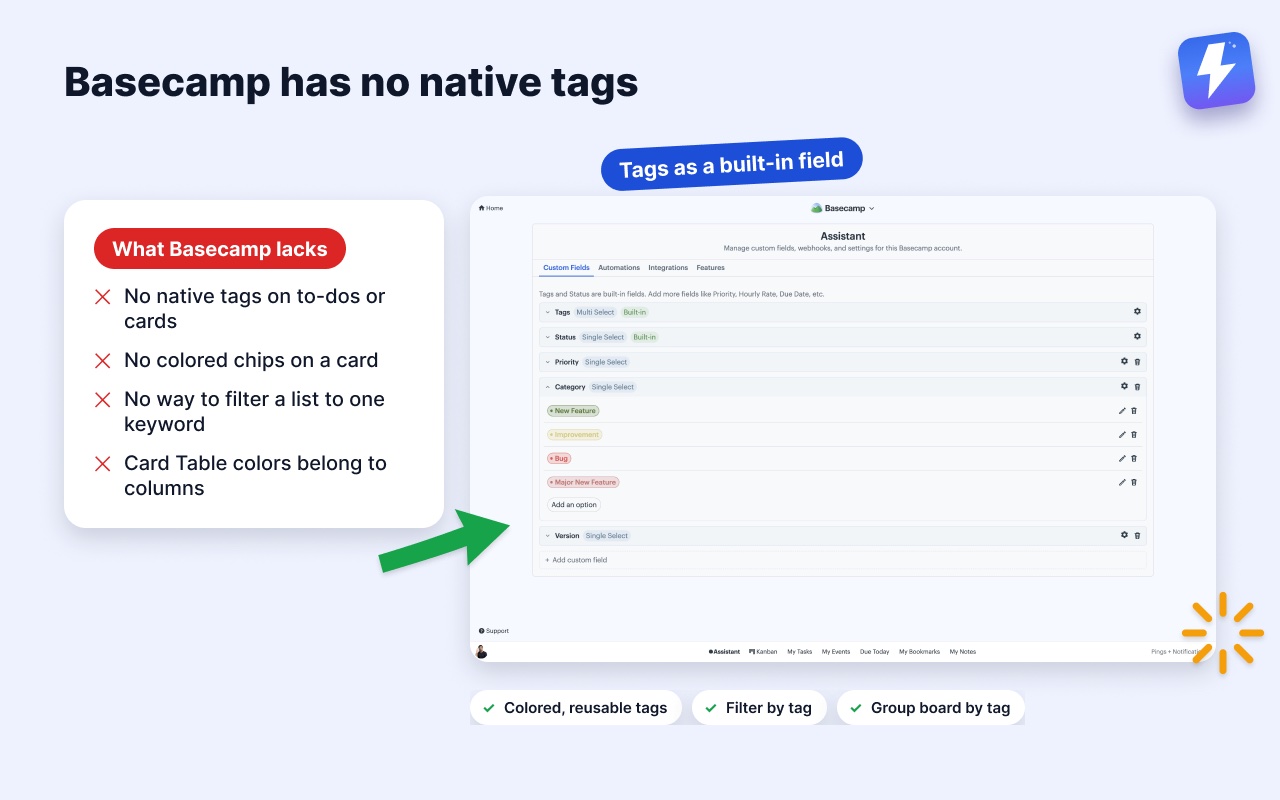
How to add tags to Basecamp to-dos and cards
Assistant for Basecamp is a browser extension that adds tags (and more) directly inside Basecamp. You work inside Basecamp instead of moving to a new tool, and anyone can connect the account for everyone. The tag definitions and which items carry them live on Assistant’s servers; your messages, to-dos, and files stay in Basecamp. Tags are one of the built-in fields covered on the custom fields for Basecamp page.
- Install the extension. Add Assistant for BasecampAssistant for Basecamp from the Chrome Web Store or Firefox Add-ons. It runs on Chrome, Firefox, Edge, Brave, and any Chromium browser, and works with Basecamp 5.
- Connect once. Sign in with Basecamp’s own login. Anyone on the account can connect it; everyone else on that account gets tags automatically, with no per-seat setup. The getting started guide walks through it.
- Open a to-do, card, or message and add a tag. Assistant adds a tag control to the item. Type a name like Bug, pick a color, and it’s saved. Reuse that same tag on any other item with a click.
Tags work the same way on a to-do, a Card Table card, and a message, so you can label across the whole project, not just one tool.
Can I color-code Basecamp tags?
Yes. Every tag carries a color, so Bug can be red, Waiting on client amber, and Done for review green. The color shows as a chip on the item and on the Kanban board, so you can scan a list and read status by color without opening anything. This is the closest thing Basecamp gets to true color-coded labels, and it’s reusable across the project rather than locked to a single column.
How do I filter Basecamp by tag?
Once items are tagged, you can filter to just one tag, or a combination. On the board, open the filter and pick Urgent to hide everything else. This is where tags earn their place over title prefixes: a prefix is a string you have to search for and read carefully, while a tag is a real filter that shows you the exact set and a count. Pair it with grouping and filtering to slice a project down to “my urgent bugs” in two clicks.
You can also group the board by tag, which turns every tag into a column. Because a to-do can carry several tags at once, it appears in every column it belongs to: something tagged Bug, Urgent, and Frontend shows up under all three. Nothing gets filed under one label and lost from the other two.
Tags vs custom fields: which should I use?
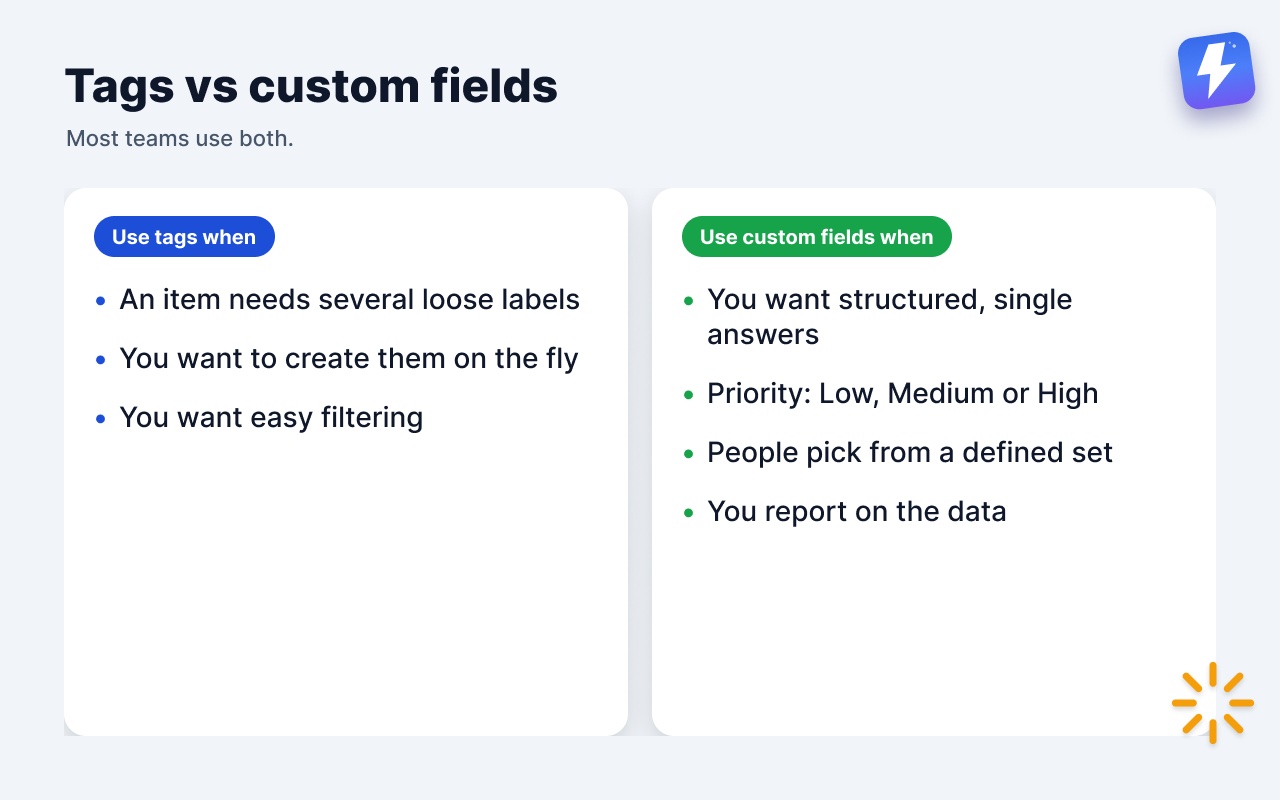
Tags are the right tool when an item can carry several loose labels at once: a to-do can be both Bug and Urgent and Frontend. They’re quick to create on the fly and easy to filter.
Custom fields are better when you want structured, single-answer data: a Priority field that’s always one of Low, Medium, or High, or a Due quarter date. Fields keep values consistent because people pick from a defined set rather than inventing new tags.
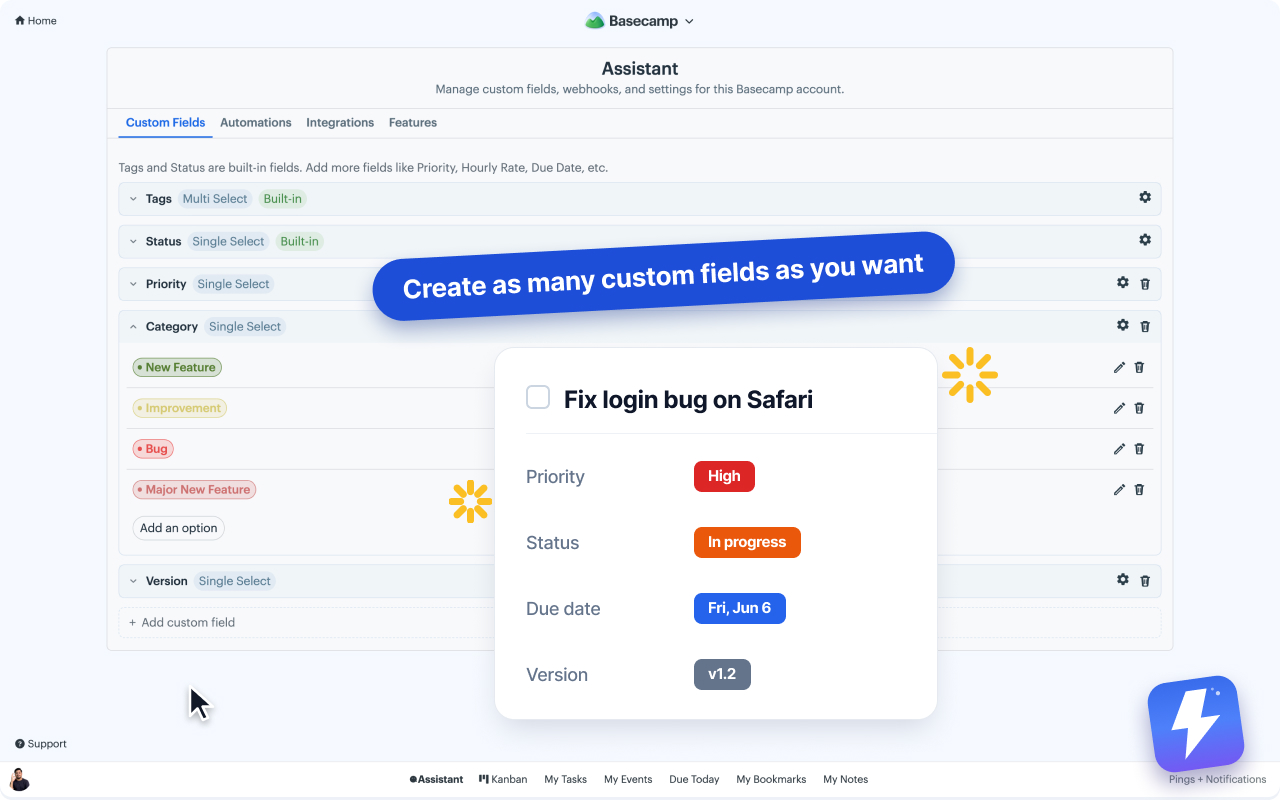
Most teams use both: tags for ad-hoc grouping, fields for the data you report on. See how to add custom fields to Basecamp and how to add custom statuses for the structured side.
What about other ways to add tags to Basecamp?
Where Assistant differs is breadth. Tags here come alongside custom fields, reusable statuses, a Kanban board over your to-do lists, and automations, all in one extension. If you only ever want labels, that breadth is overkill. If you expect to also want a board and fields down the line, having them in one tool that shares one connection is the practical reason to start here.
On scope: tags are stored against your Basecamp account, so the set you build once is the same set in every project. The board then reads them at whatever width you open it, one to-do list, one project, or every project in the account, which is how you get “every urgent item anywhere” onto one screen.
How much does it cost?
Assistant for Basecamp is $29/month or $290/year for the whole account, with unlimited seats and one admin paying. There’s a 7-day free trial with no card needed. Full details are on the pricing page, and the tags doc covers setup if you get stuck.
If your project has forty to-dos and no way to tell the bugs from the features at a glance, tags are the fastest fix, and filtering the board down to one of them afterwards takes a click.
Useful? Tell Google you want more of this.