How to Automate Basecamp Without Zapier
If you run a team in Basecamp, you’ve probably wished it would do small jobs for you. When a to-do gets completed, tag it. When a card hits a “Blocked” status, comment to flag it. When someone creates a to-do in a list, assign the right person. Most people reach for Zapier to wire this up. But Basecamp automation through Zapier means a second tool, a monthly bill on top of Basecamp, and data leaving your account. This guide shows how to set up Basecamp automations that run inside Basecamp itself, no Zapier required.
Why people use Zapier for Basecamp automation
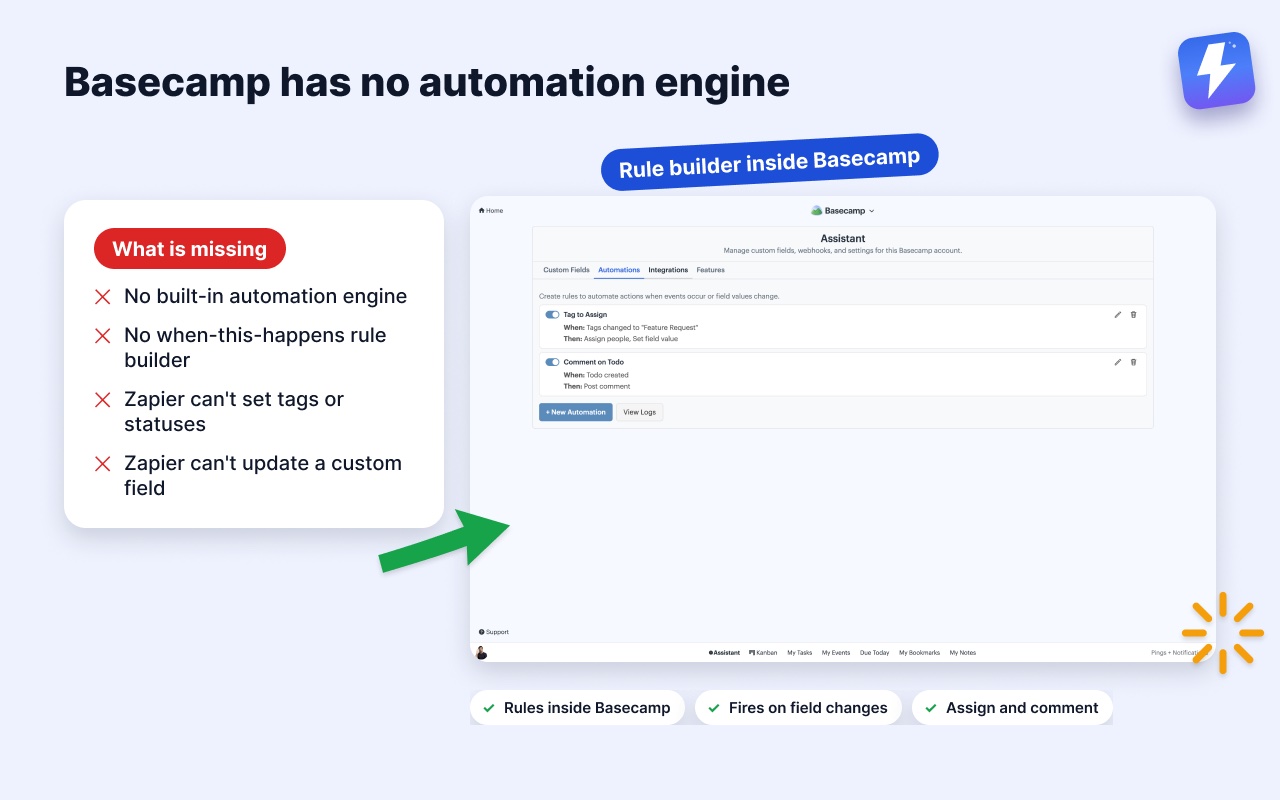
Basecamp has no built-in automation engine. There’s no “when this happens, do that” rule builder anywhere in the product. So if you want a task to tag itself, or a comment to post when something changes, your only native option is to do it by hand every time.
That’s the gap Zapier fills. You connect Basecamp to Zapier, build a Zap with a trigger and an action, and let it run. It works, but it comes with trade-offs:
- A separate subscription. Zapier’s paid plans start adding up fast once you go past a handful of tasks per month.
- Data leaves Basecamp. Every trigger sends your project data out to Zapier’s servers to be processed.
- Limited Basecamp actions. Zapier can create a few things, but it can’t set a tag, change a status, or update a custom field, because Basecamp doesn’t have tags, statuses, or custom fields natively for Zapier to touch.
That last point is the real ceiling. Zapier can only automate the parts of Basecamp that exist. And Basecamp’s data model is deliberately simple.
Can you automate Basecamp without Zapier?
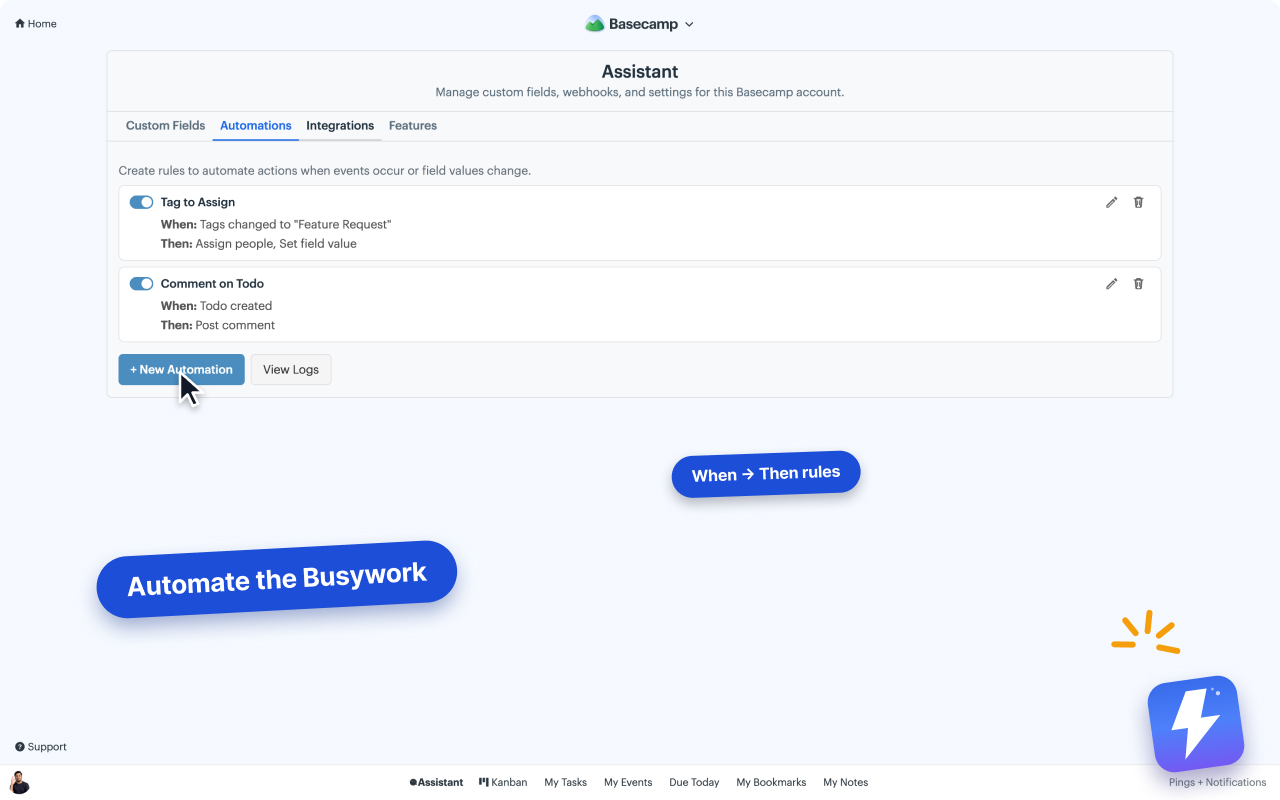
Yes. Assistant for Basecamp is a browser extension that adds an automation rule builder directly inside Basecamp. You write rules in plain “when X, do Y” form, and they run on your project automatically. No Zapier, and no second tool for your team to adopt.
Here’s the honest boundary, because it matters for how you plan: these rules run on Basecamp’s own events and on changes to fields Assistant adds. They do not accept inbound webhooks from Zapier, Make, or any outside service. If your goal is “when a Stripe payment lands, do something in Basecamp,” that’s a Zapier-shaped job and Assistant won’t replace it. If your goal is “keep my Basecamp project organized as work moves through it,” that’s exactly what the rule builder is for.
What can trigger a Basecamp automation?
Every rule starts with a trigger. Assistant listens for two kinds of events:
Basecamp’s own events, such as:
- A to-do is created
- A to-do is completed
- A to-do is reopened (uncompleted)
- A comment is posted
Changes to the fields Assistant adds on top of Basecamp, such as:
- A custom field value changes (for example, a “Priority” select moves to High)
- A status changes (for example, a card moves to Blocked)
- A tag is added or removed
Those second three are the reason this goes further than Zapier ever could. Basecamp has no native tags, statuses, or custom fields, so no external tool can trigger off them. Assistant adds those fields and the engine that watches them, so a status change can set off a chain of actions automatically.
What can a Basecamp automation do?
When a trigger fires, a rule can run one or more of these actions:
- Set a custom field to a chosen value (for example, set Stage to In review).
- Attach or detach an option on a multi-select field (add a label without wiping the others).
- Complete or uncomplete a to-do.
- Assign people to the to-do or card.
- Post a comment with text you write.
That’s the full action set. It’s intentionally scoped to things that keep a project tidy and moving, not arbitrary outside calls.
How to set up your first automation, step by step
You don’t need to migrate anything or learn a scripting language. The rules sit on top of the Basecamp projects you already use.
- Install the extension. Add Assistant for BasecampAssistant for Basecamp from the Chrome Web Store or Firefox Add-ons. It works on Chrome, Firefox, Edge, Brave, and any Chromium browser.
- Connect Basecamp once. Open the extension and sign in with Basecamp’s OAuth. Anyone connects the account once and everyone on that account gets the features, with no per-seat setup. The getting started guide has the full walkthrough.
- Open the automation builder. Inside any project, open Assistant’s automation panel and click to add a new rule.
- Pick a trigger. Choose a Basecamp event (like to-do completed) or a field change (like status changes to Blocked).
- Add one or more actions. For example: post a comment that says “Flagged as blocked, needs attention” and set the Priority field to High.
- Save and let it run. From then on, every time the trigger fires on that project, the actions run on their own.
Three rules that pay off immediately
To make this concrete, here are setups teams reach for first:
- Auto-flag blocked work. When status changes to Blocked → post a comment tagging the lead and set Priority to High. Nobody has to remember to raise their hand.
- Keep a stage field in sync. When a to-do is completed → set the Stage field to Done. Your Kanban board and reports stay accurate without manual updates.
- Route new work. When a to-do is created in a list → assign it to the person who owns that list. New items land on the right desk from the start.
Where Zapier still wins
Honesty matters here, so here’s where Assistant stops and Zapier keeps going.
Assistant automates inside one Basecamp project at a time, off Basecamp events and the fields it adds. It cannot start a rule from an outside service. If you need any of the following, Zapier (or Make) is the right tool, and you may even run both side by side:
- Connecting other apps to Basecamp. A new row in a spreadsheet, a form submission, a paid invoice, a Slack message, none of those can trigger an Assistant rule.
- Pushing Basecamp data out to a CRM, a data warehouse, or an email tool.
- Cross-app, multi-step workflows that span three or four products.
Assistant isn’t trying to be an integration platform. It’s trying to make the project you’re already looking at run itself. For the Basecamp-shaped half of automation, that’s a cleaner fit than a general-purpose tool. For everything that crosses app boundaries, keep Zapier.
Does this move my data or replace Basecamp?
No. Your projects, to-dos, and messages are not moved anywhere, and every action a rule takes is written back into Basecamp through Basecamp’s own API.
To be straight about the mechanics: the automations themselves run on our servers. Basecamp sends us an event when something changes in a project you’ve enabled, our rules evaluate it, and the change goes back to Basecamp. What’s different from Zapier is that nothing is handed to a third-party app, the rules can set tags, statuses, and custom fields Zapier can’t touch, and it’s one flat bill instead of a per-task plan.
Teammates who don’t install the extension still see plain Basecamp, and if you uninstall it, everything returns to normal.
What it costs
Assistant is one flat price, $29/month or $290/year for your whole team, with unlimited seats and every feature, automations included. One admin subscribes and everyone on that Basecamp account gets access, with no per-seat charge. You can try it free for 7 days, no card needed. Full details live on the pricing page, and the automations help doc covers every trigger and action in depth.
The short version
You can get real Basecamp automation without Zapier, as long as the job lives inside Basecamp. Assistant’s rule builder fires on Basecamp events and on tag, status, and custom-field changes, then auto-tags, sets fields, assigns people, completes to-dos, or posts comments. It won’t accept inbound webhooks from outside apps, so keep Zapier for anything that crosses tools. For keeping your own project organized as work moves through it, a rule that runs where the work already lives beats a second subscription that has to reach in from the outside.
Useful? Tell Google you want more of this.