Getting started
A five-minute setup from install to a fully working Kanban board.
1. Install the extension
Open the Chrome Web Store listing and click Add to Chrome. The extension works on any Chromium browser (Chrome, Arc, Edge, Brave).
2. Sign in to Assistant
Open app.getassistant.io and sign in. You’ll be asked to authorize the Basecamp account you want to connect. Assistant uses Basecamp OAuth, so we never see your password.
Only Basecamp admins can connect an account. If you’re not an admin, ask yours to connect first — then you just sign in and you’re in, automatically.
3. Start your free trial
You get 14 days free on all features. No credit card required. Set up billing anytime during or after the trial from Settings → Billing.
4. Your whole team’s in
There’s nothing to assign. Once an admin has connected and subscribed (or while you’re in the trial), anyone in that Basecamp account just installs the extension and signs in — access is automatic. No seats, no invites, no access requests.
5. Open a project and try it
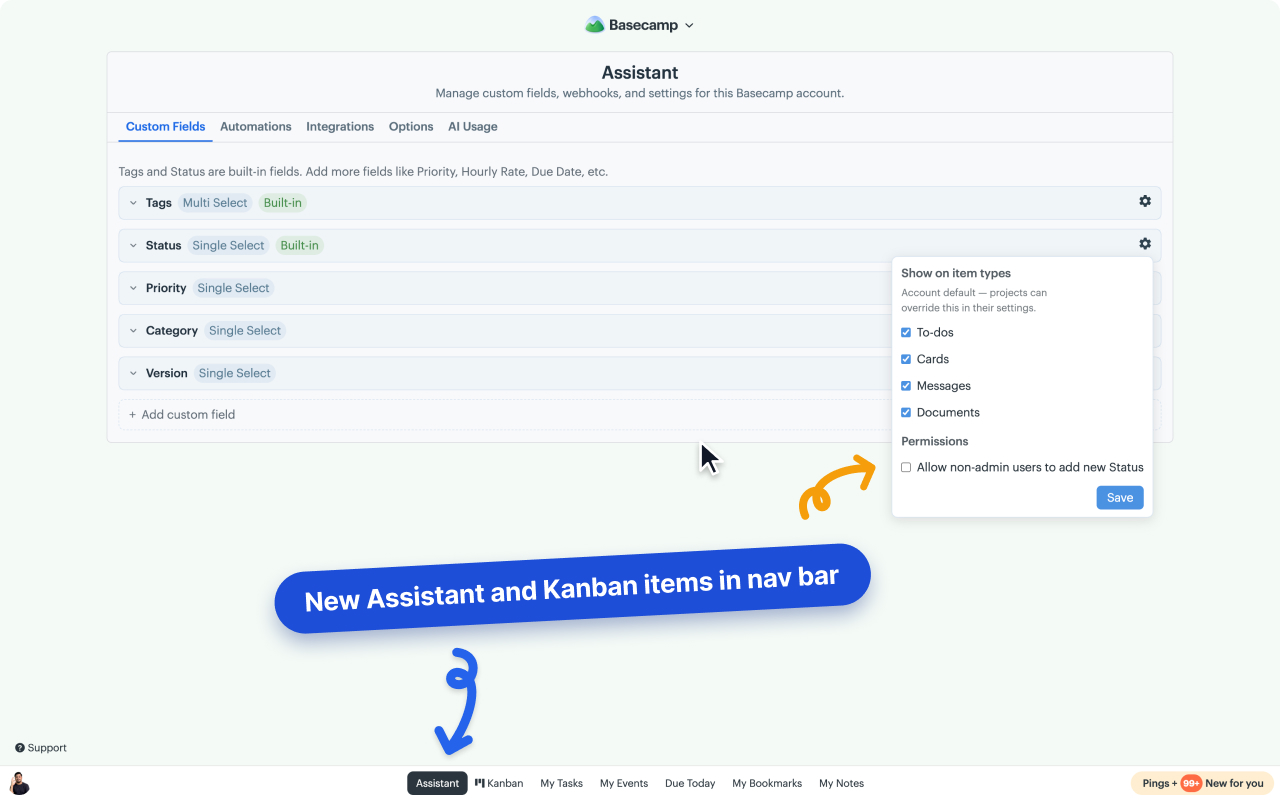
Go to any Basecamp project. You’ll see two new tabs injected by the extension:
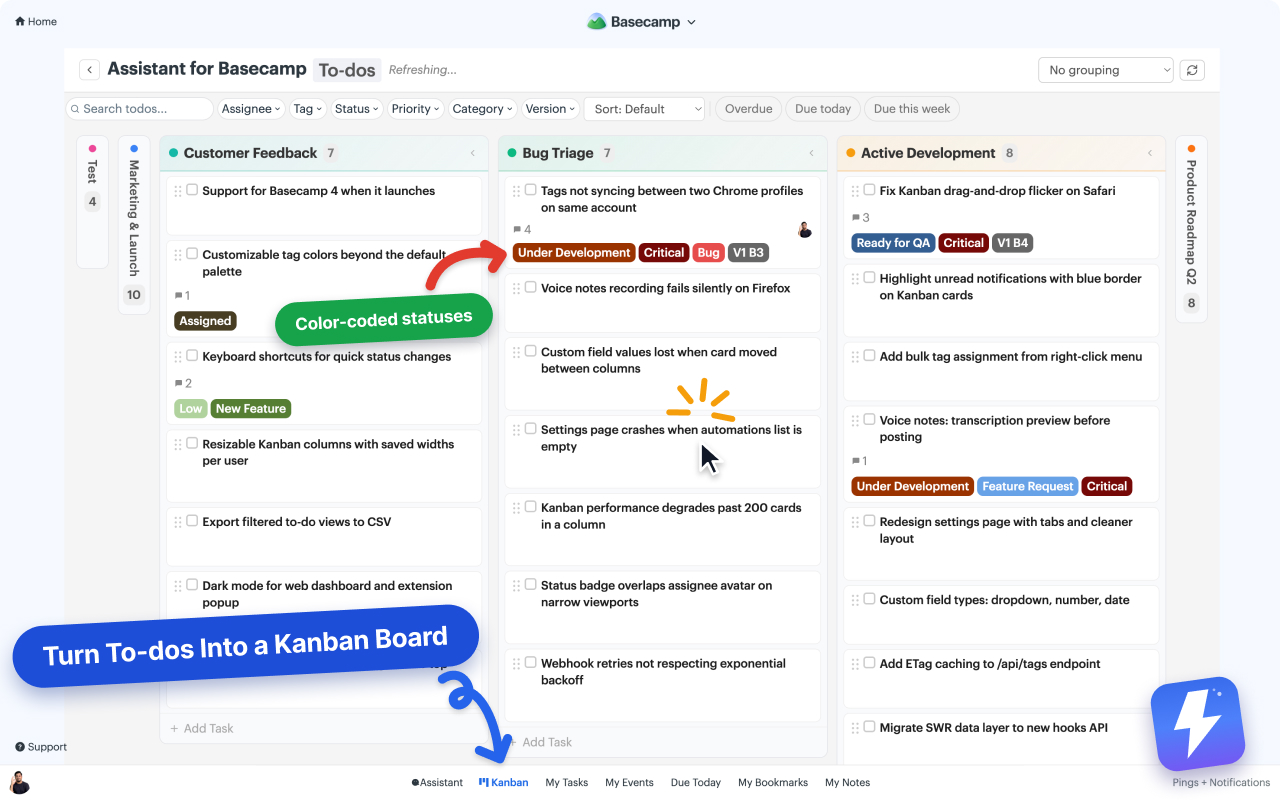
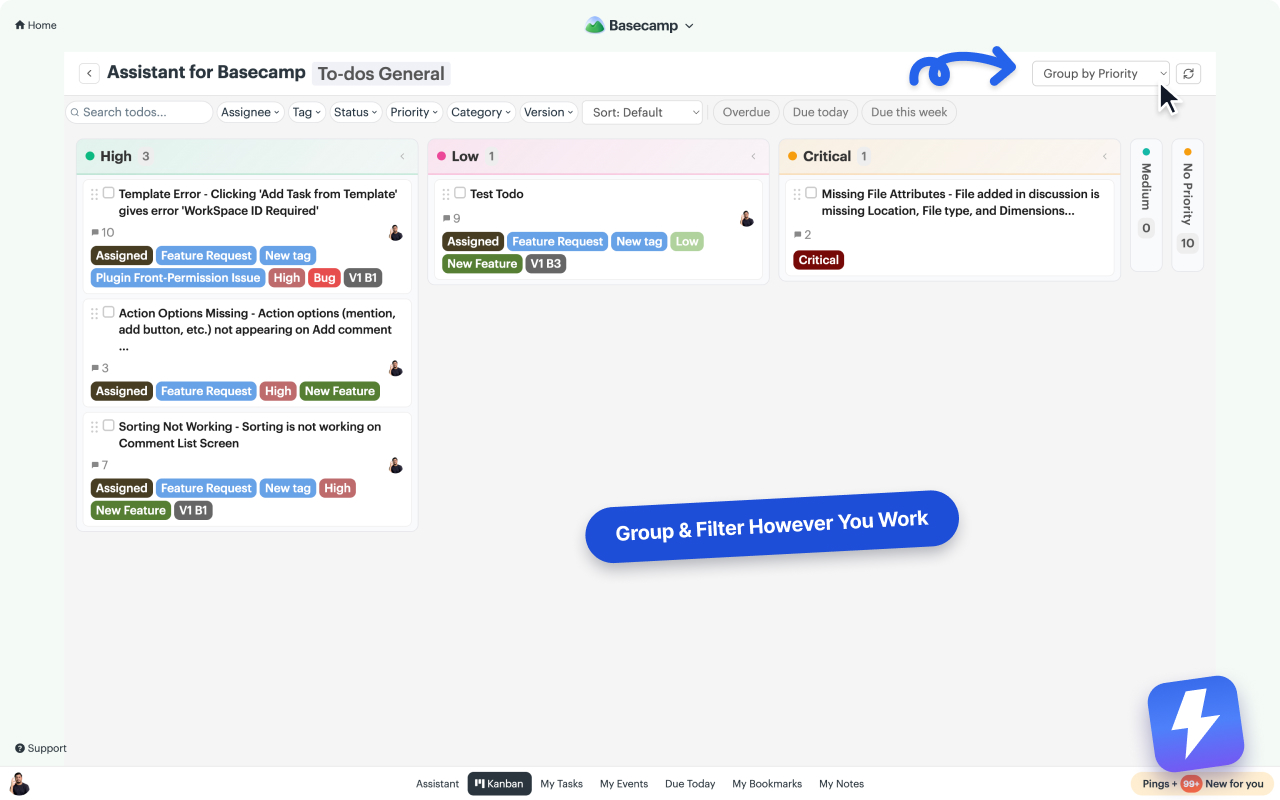
- Kanban: board view grouped by status or tag
- Assistant: settings and shortcuts (admins only)
Click any to-do, card, or message to add tags, set statuses, or fill custom fields.

Next steps
Need help? Email hello@getassistant.io.