How to Filter and Group Basecamp Tasks
The question usually comes up the same way: “Show me everything Sara is working on right now.” Or “Where are all the bugs?” Basecamp can’t answer either one directly. There’s no way to filter Basecamp tasks by who owns them, no way to group your to-dos by status, and no view that pulls one person’s work into a single column. You scroll through every list, project the answer in your head, and hope you didn’t miss something.
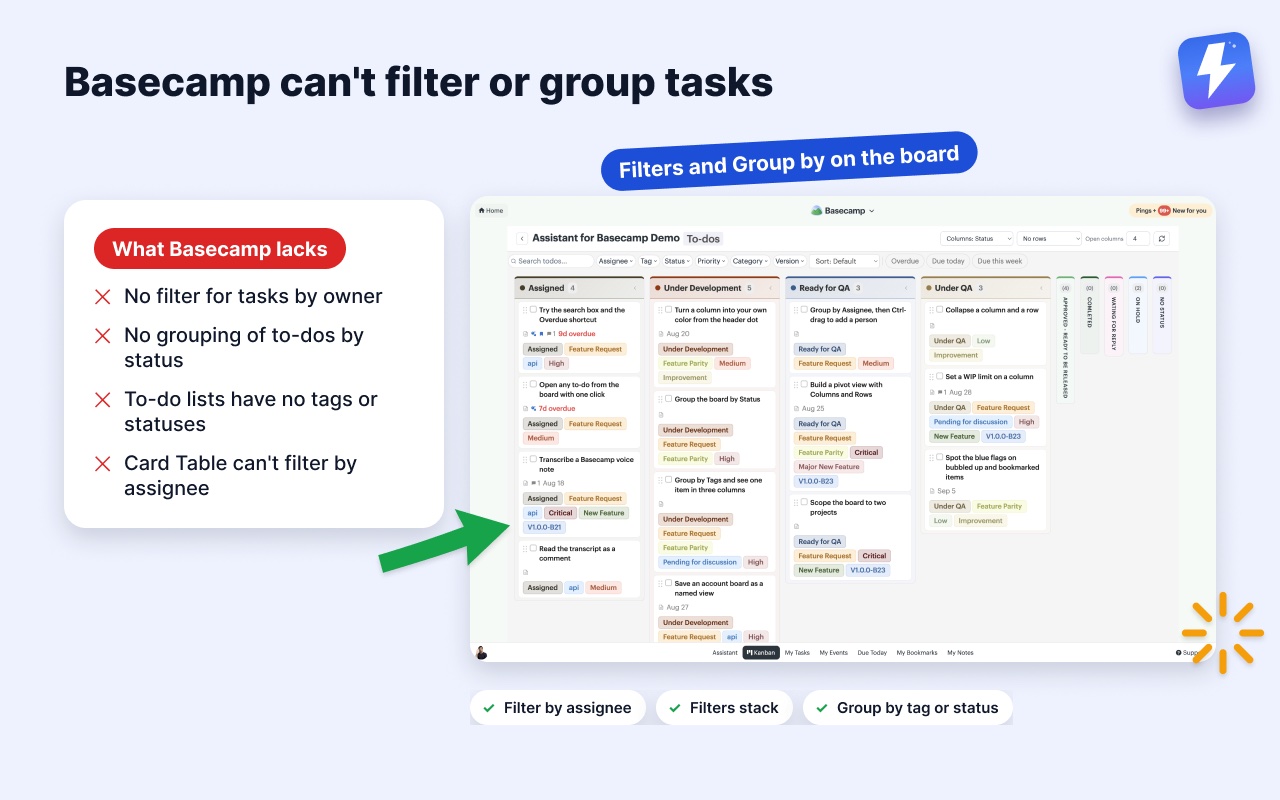
This guide shows how to filter and group your Basecamp tasks with Assistant for Basecamp (AfB), our browser extension. You filter the board by tag, assignee, or status, then regroup it so each person, tag, or status gets its own column. You do all of it inside Basecamp, on the pages you already use.
Why can’t you filter tasks in Basecamp natively?
Basecamp keeps things simple on purpose, and that simplicity is part of why people like it. The trade-off shows up the moment a project gets busy.
To-do lists have no tags, no custom statuses, and no filter. A Card Table (Basecamp’s own kanban-style tool) gives you columns, but it’s a separate silo from your to-do lists, and it still won’t let you filter cards by assignee or group them by anything. So if your real work lives in to-do lists, which it does for most teams, you have no fast way to ask “what’s mine,” “what’s blocked,” or “what’s tagged urgent.”
That’s the gap AfB fills. It reads your existing project and adds a filterable, groupable board on top of it. Nothing moves. Nothing gets duplicated into a second tool.
How the AfB board is built from your project
Before you filter anything, it helps to know what you’re filtering. AfB turns a project into a Kanban board where every to-do list becomes a column. Your project’s structure is the board. There are no preset Backlog or Done columns to force your work into, so one project might have three columns and another eleven.
You can open that board over a single to-do list, over a whole project, or over every project in your account at once. Filtering and grouping work the same way at all three widths.
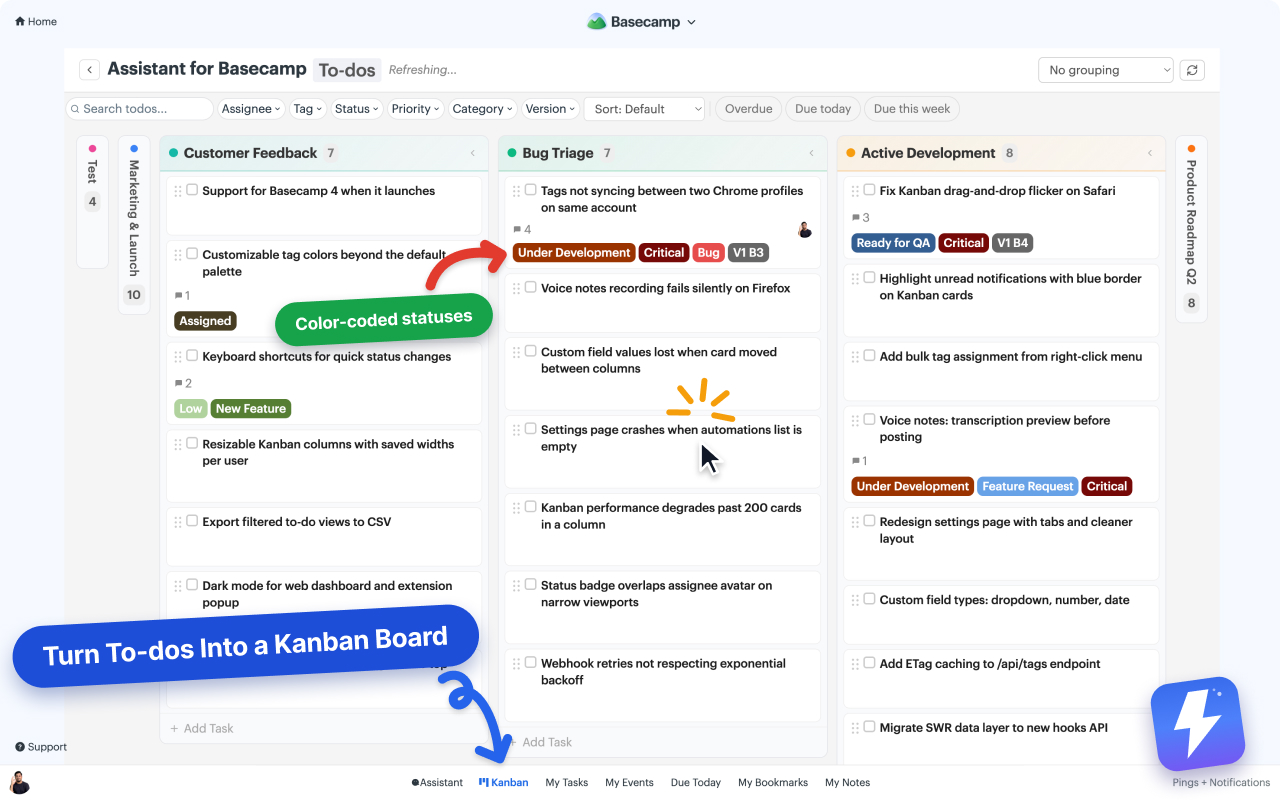
Each card on that board is a real Basecamp to-do. You can put tags on it, set a custom status, and it still carries its Basecamp assignees and due dates. Those four things, tag, status, assignee, and due date, are exactly what you filter and group by.
How to filter Basecamp tasks by tag, assignee, or status
Open the AfB board on any project and use the board filters at the top. You can filter by:
- Assignee: show only the cards assigned to one person, or a few people. This is the answer to “what is Sara working on.”
- Tag: show only cards carrying a tag, like
bug,client-facing, orneeds-review. - Status: show only cards in a status you defined, like
BlockedorIn review.
Filters stack. Pick assignee = Sara and tag = bug, and the board narrows to Sara’s bugs only. Everything that doesn’t match drops out of view. Clear the filter and the full board comes back. Nothing was deleted or moved; you were only changing what you looked at.
Because the filter runs on the board, it spans every column at once. You’re not filtering one to-do list, you’re filtering the whole project. That’s the part Basecamp can’t do on its own.
How to group Basecamp tasks into columns
Filtering narrows what you see. Grouping reorganizes it. AfB rebuilds the board around whatever field you pick, so the columns become that field’s values instead of your to-do lists.
You can group by:
- Assignee: one column per person, plus an Unassigned column for work nobody owns yet. This is the closest thing to a per-person view Basecamp will ever give you.
- Tag: one column per tag, so all your
bugcards sit together andfeaturecards in the next column. - Status: one column per status value, so the board reads as your workflow: In review, Blocked, Done, each with its own column.
Fields that hold more than one value put an item in every column it belongs to. A to-do tagged bug and client-facing appears under both, so it doesn’t quietly drop out of one of the two views you were checking.
People work the same way. A to-do with two assignees shows under each of them. Drag one of those copies to another column and you move that single assignment, leaving the other person on the task. Hold Ctrl while you drag and you add a person instead of swapping one out. This works on to-dos; cards can’t be reassigned by dragging yet.
Grouping by assignee gives every person in the project a column, which is fine until half of those columns are empty. The Display button at the right end of the toolbar has a Hide empty columns and rows option that drops anyone with no open to-dos, including a teammate who left and still holds completed work. Custom rules go further: hide or show columns and rows on conditions like overdue items, last activity, or the WIP limit, and put the ones you always want on screen on an Always show list. The Kanban help doc covers the full set.
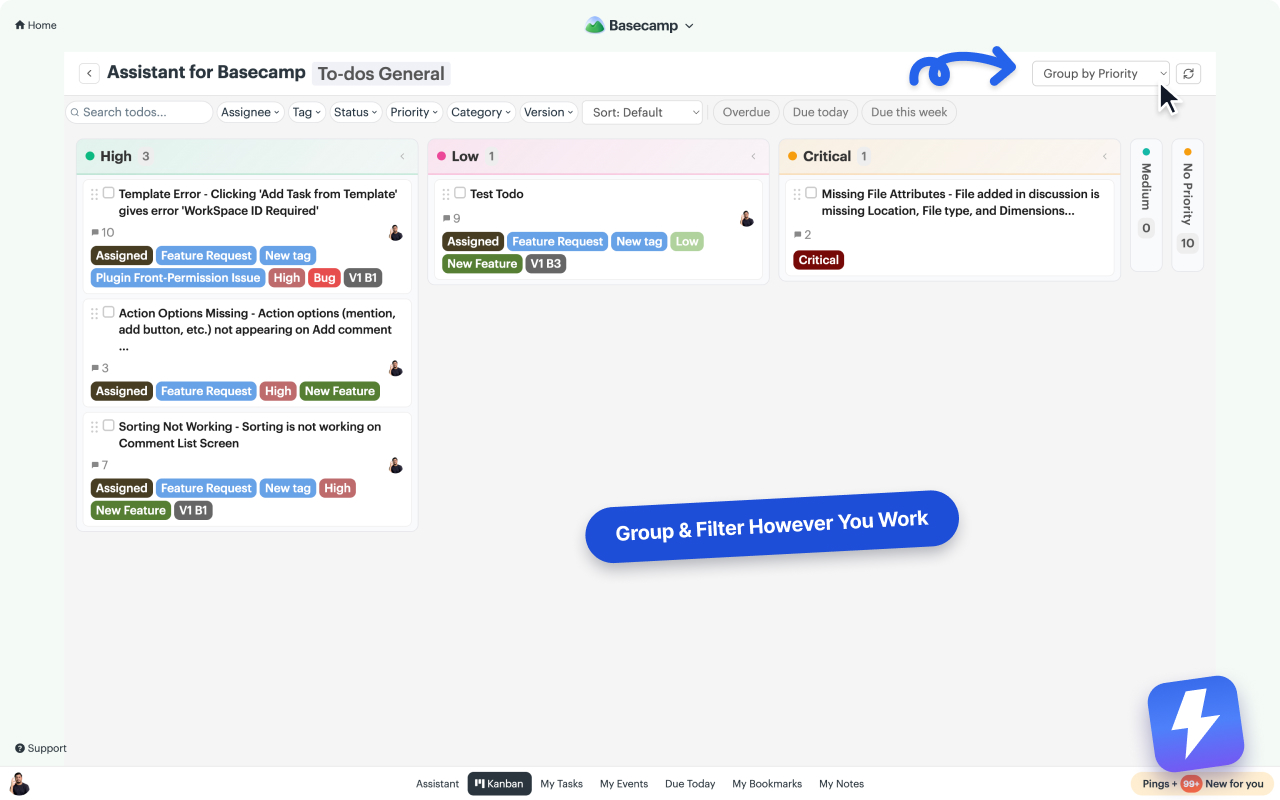
Grouping and filters work together. Filter to a single client’s tag, then group the remaining cards by assignee, and you get a clean per-person breakdown of just that client’s work. That’s the kind of view a project manager rebuilds by hand every Monday, available in two clicks.
Two fields at once, in a grid
Grouping gives you one axis. When you want two, switch to the pivot view: one field builds the columns, another builds the rows. Status across the top with to-do lists down the side is where most teams land, because it shows what state the work is in and which part of the project it belongs to without making you pick one.
Rows collapse when you want a section out of the way, and the column headers and row labels stay put while you scroll, so you never lose track of which cell you’re reading.
A few real situations this solves
Stand-up prep. Group by assignee. Each person’s column is their stand-up, in one place.
Bug triage. Filter by tag = bug, then group by status. Now you see how many bugs are new, in review, or blocked, all at a glance, without leaving the project.
Workload check. Group by assignee and scan the columns. If one column is stacked and another is empty, you’ve found your bottleneck. Set a WIP limit on the busiest column and its count turns red before anyone gets buried.
What this does not do
Grouping is a view, not a report. AfB shows you the work, sorted and filtered the way you want. It won’t generate time-tracking summaries or charts; for time tracking, Basecamp itself sends you to tools like Harvest or Everhour, and so do we.
Filtering doesn’t change anything in Basecamp either. Hiding a card from your board doesn’t hide it from your teammates or touch the to-do itself. It only changes what you’re looking at.
Getting started
Filtering and grouping live inside the AfB board, so the setup is the same as turning on the board. Install Assistant for Basecamp from the Chrome Web Store or Firefox Add-ons, open any project, and the board appears with each to-do list as a column. Add a tag or status to a few cards, then try filtering by assignee and grouping by status to see your project reshape itself. Everything else the board does is on the Basecamp Kanban board page.
When you land on a setup you keep coming back to, save it. Search your projects and clients, select the ones you want, several projects or several clients rather than a mix, and give the view a name. Saved views are per person and kept on our side, so yours follow you to whatever computer you sign in from.
It’s $29/month or $290/year for the whole account, unlimited seats, one admin pays, with a 7-day free trial and no card needed. The full walkthrough is in the Kanban help doc.
The test is simple: ask “what is one person working on right now,” and see how fast you can answer it. With filters and grouping, it’s a glance.
Useful? Tell Google you want more of this.