Basecamp Project Templates: How They Work (+ To-Do List Workarounds)
If you run the same kind of project over and over, retyping the same to-do lists, the same docs, and the same column layout every single time, you already know the cost. It is slow, and it leaves room for someone to forget a step. The good news is that Basecamp templates solve most of this for whole projects. The catch is that Basecamp has no equivalent for an individual card inside a card table. You can copy a card, but you cannot save one as a blueprint, so card-level reuse needs a workaround.
This post covers both. First, how to actually use Basecamp project templates, what they copy and what they do not. Then the card-level gap and the practical ways around it. At the end, the small set of reusable pieces Assistant for Basecamp adds so a fresh project starts out with your fields, statuses, and rules already in place.
Does Basecamp have project templates?
Yes. Basecamp project templates are a native feature, and they are the right tool when you keep spinning up similar projects. A template is a saved project skeleton. You build it once, then create new projects from it instead of from a blank slate.
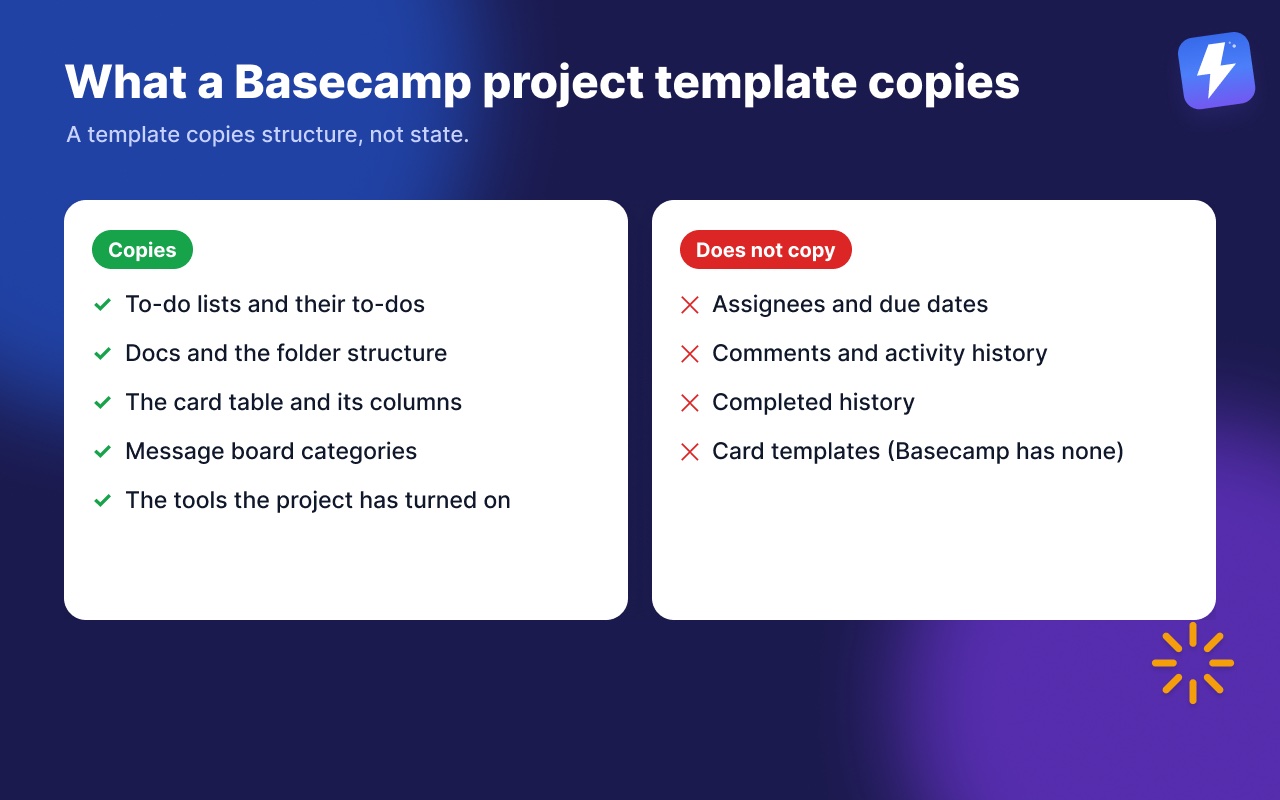
A template can carry:
- To-do lists and the to-dos inside them
- Docs and the folder structure in Docs and Files
- The card table and its columns
- Message board categories
- The tools that project has turned on (card table, schedule, check-ins, and so on)
That covers most of the repetitive setup for an agency onboarding flow, a content calendar, a client build, or any process you run the same way each time.
How to create a Basecamp project template
You make a template the same way you make a project. The cleanest path is to set up one real project exactly how you want every future one to look, then save its structure as a template.
- Open the Adminland area (the link is at the bottom of your account home).
- Find the Templates section and choose to create a new project template.
- Build it out like a normal project: add the to-do lists, the docs, the card table columns, and any message board categories you want every project to start with.
- Name the template something your team will recognize, for example “Client Website Build” or “Monthly Content Sprint.”
From then on, when you create a new project, Basecamp offers your saved templates as a starting point. Pick one and the new project arrives pre-filled with all of that structure. You only change the parts that differ for this specific client or month.
What Basecamp templates do not copy
This is the part people get caught by, so it is worth being precise. A template copies structure, not state.
- Assignees and due dates do not carry over in a meaningful way. A template has no live dates, so you set deadlines and owners on the new project, not in the template.
- Comments, completed history, and activity are not copied. A template is a clean starting point, not a clone of a finished project with its discussion intact.
- Files attached to specific to-dos behave differently from docs sitting in Docs and Files. Keep the reusable reference material in Docs and Files so it travels with the template reliably.
So a template gets you a correct skeleton every time. It does not get you a running project with everyone already assigned. That last mile is manual, which is by design.
Does Basecamp have card templates?
No. This is the real gap. Basecamp has Card Tables, and Basecamp has project templates, but it has no concept of a reusable template for a single card. You cannot save one card as a blueprint and stamp out new cards from it. Copying and moving a single card is native, so the gap is not duplication, it is that nothing stores a card as a starting point. Every card you create from scratch starts empty, and you fill in the title, description, assignees, and dates by hand.
For teams whose work is genuinely card-shaped, the same kind of card with the same five sub-steps, the same checklist of fields, this is the friction point. The closest native move is parking one good card on the board and copying it, which works, but Basecamp will not hand you that card in the next project.
Workarounds for reusable cards in Basecamp
Until Basecamp adds card templates, here are the workarounds that get you most of the way there. None of them is perfect, and that is the honest truth, but each removes some of the retyping.
1. Keep a “template card” parked in a column. Make one card that holds your standard description, your standard checklist of steps written into the description, and any default labels. When you need a new one, copy that card natively and edit the copy. Basecamp will not remember it as a template, so the source card has to stay parked where people can find it, but you are working from a known-good source instead of remembering.
2. Keep the boilerplate in a Doc. Put your standard card description, intake questions, or step list in a doc in Docs and Files. When you make a new card, paste from the doc. This is the most reliable option because docs travel cleanly inside a project template, so a project made from your template already carries the boilerplate.
3. Use a to-do list as the repeating unit instead of a card. If your repeated work is really a checklist of steps, a to-do list captures it better than a single card, and to-do lists are copied by project templates. We compare the two tools directly in Basecamp card table vs to-do list so you can pick the right home for repeating work.
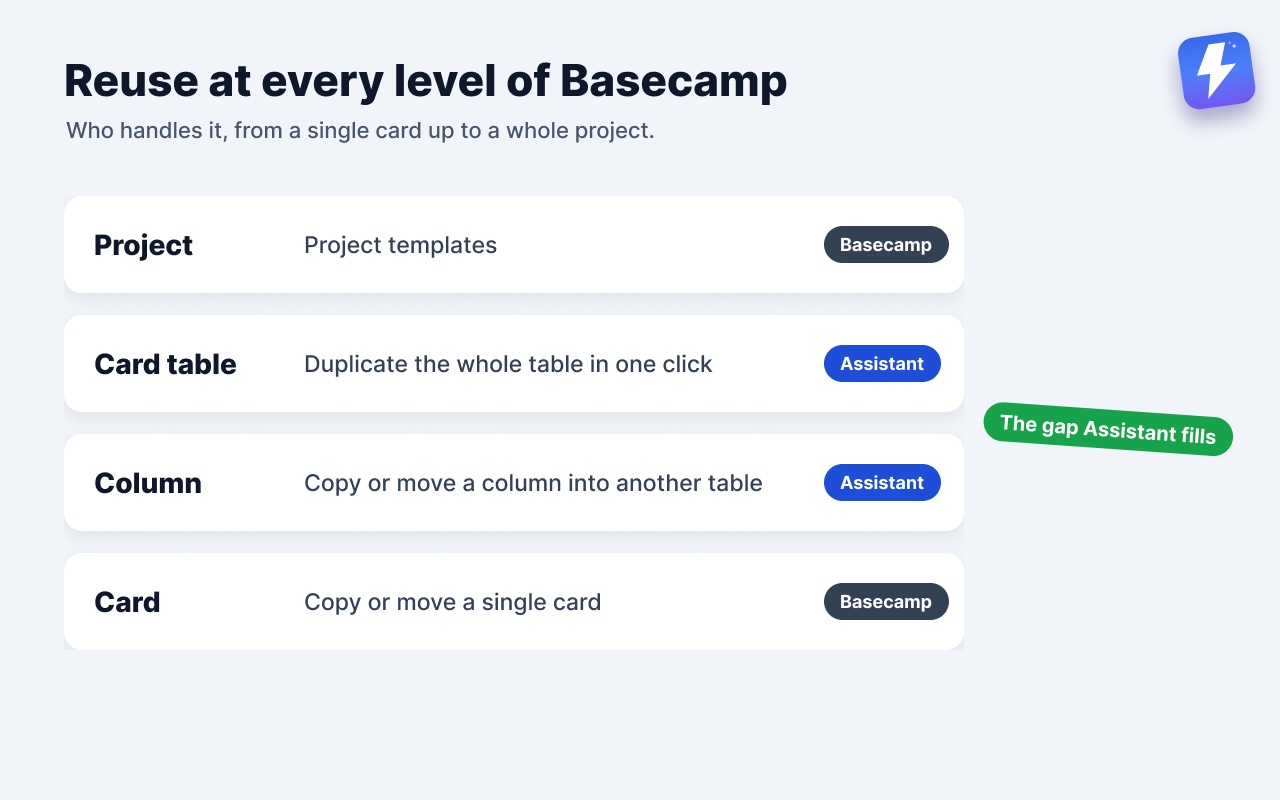
4. Know which level you are working at. One card copies and moves natively, so duplicating a card in Basecamp is not the hard part. Rebuilding a whole column or a whole table is, and that is what these templates and workarounds are for.
How Assistant for Basecamp helps with card reuse
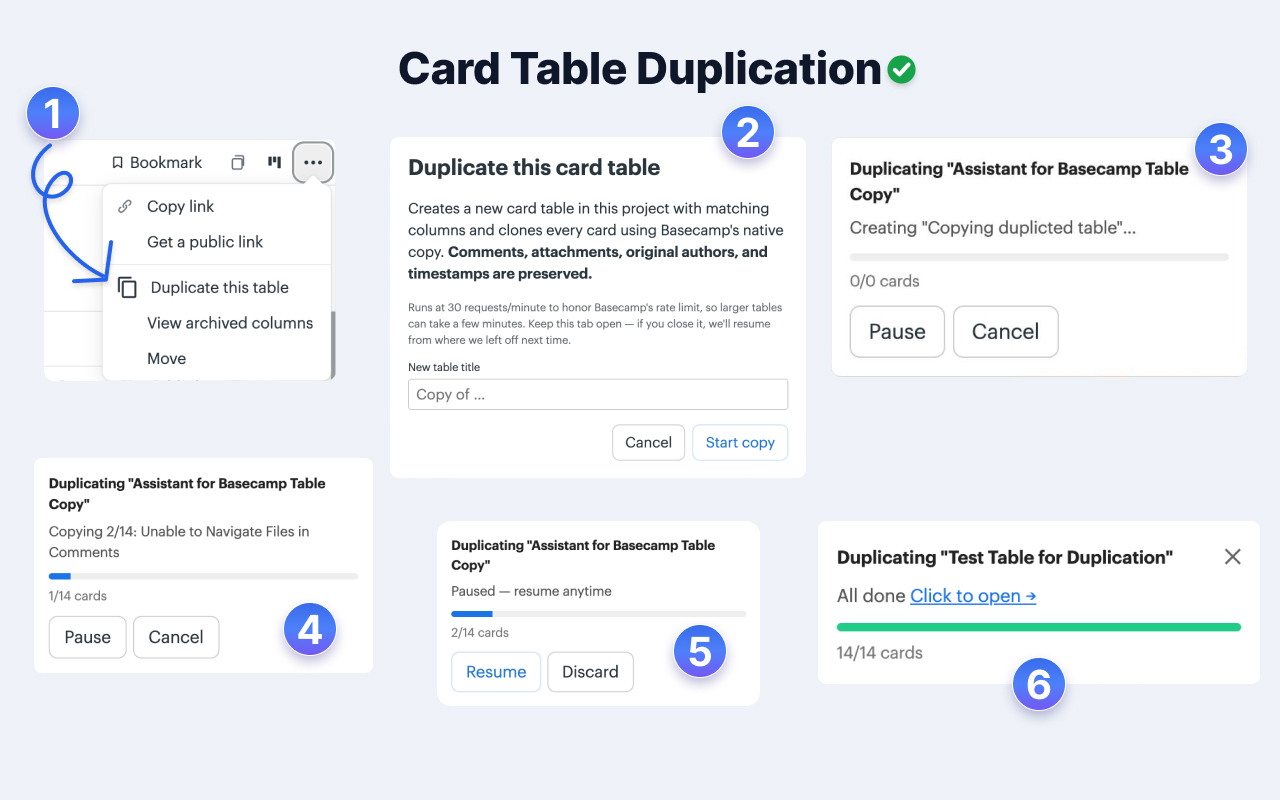
We will be straight about the boundary: Assistant for Basecamp does not ship card templates. It does not work at the card level at all, because single cards are already Basecamp’s job. What it adds is duplicating a whole card table, and copying or moving a whole column into another table, within the same project or across projects, as a job you can pause and resume. Alongside that, it brings a set of reusable pieces that keep a fresh project consistent with your others, which is usually the real goal behind wanting templates.
The closest thing to a card-table template is Assistant’s one-click table duplication: pick “Duplicate this table” and it clones the whole table, columns, cards, comments, and attachments included. Build the table once, duplicate it whenever the next round of work starts.
Assistant for Basecamp is a browser extension that adds features inside Basecamp, so nothing moves to a second tool. The reusable pieces it brings:
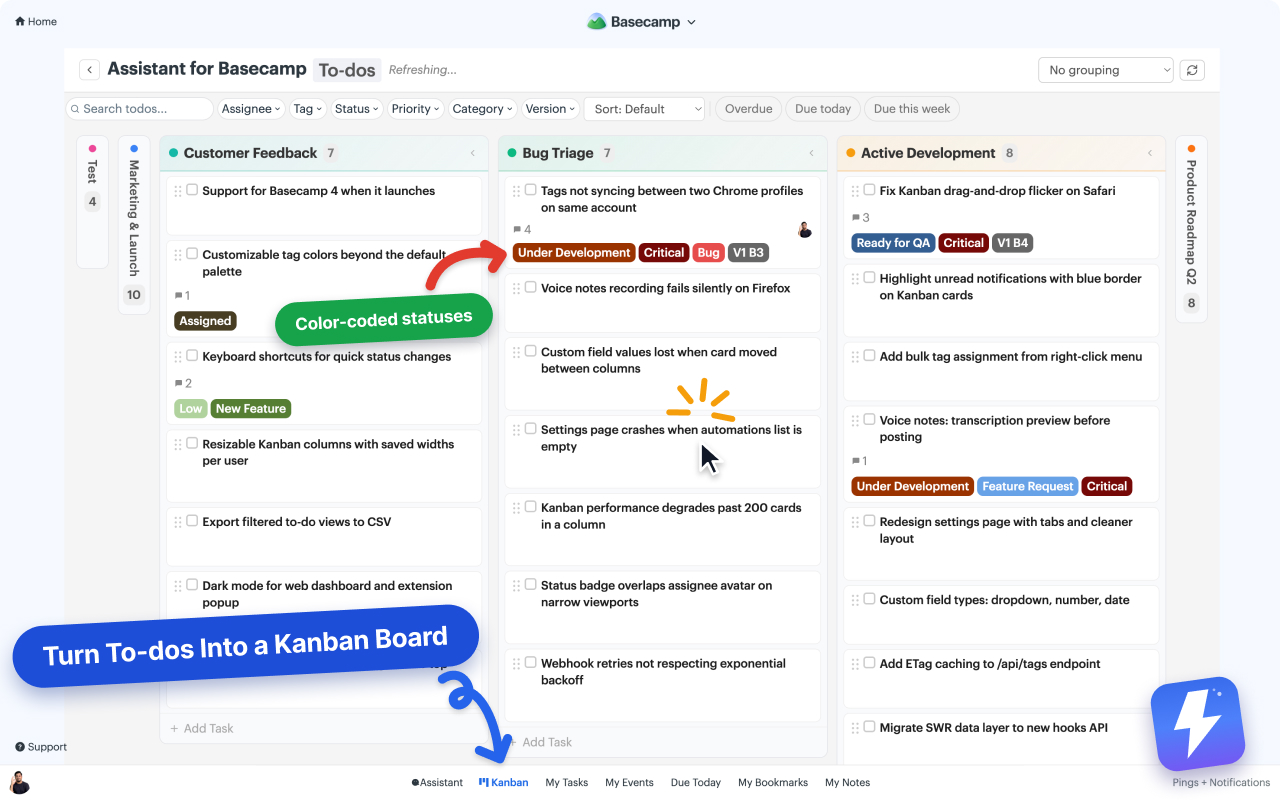
- Custom fields. Define fields once, single-select, multi-select, text, number, or date, with colored badges, and apply the same field set across your projects. Instead of retyping the same metadata structure, you reuse the field definitions. See how to add custom fields to Basecamp.
- Tags and statuses. Apply consistent tags and a consistent set of statuses to cards, to-dos, and messages so every project speaks the same language. Details in how to add custom statuses to Basecamp tasks.
- Automations. Set rules that fire on Basecamp’s own events and on custom-field changes, then act: set a field, attach or detach an option, complete or uncomplete a to-do, assign people, or post a comment. Once a rule exists, new work in that project follows the same logic without anyone setting it up by hand. See how to automate Basecamp without Zapier.
So the pattern is: use Basecamp’s native project template for the skeleton, then let Assistant for Basecamp’s fields, statuses, and automations keep the inside of every project consistent. Automations do not accept inbound Zapier or Make webhooks; the triggers are Basecamp’s own events plus AfB custom-field changes.
Assistant for Basecamp is $29/month or $290/year with unlimited seats, one admin pays for the whole team, and there is a 7-day free trial with no card needed. You can read the setup steps in the custom fields help doc or check the pricing page.
The short version
Use Basecamp project templates for anything you build the same way twice, and accept that they copy structure, not assignees, dates, or history. Basecamp has no native card templates, though copying and moving a single card is native. If you want reuse above the card level, Assistant for Basecamp duplicates a whole card table and copies or moves a whole column between tables and projects, plus reusable fields, statuses, and automations so each new project starts already matching the last one. Native-only, keep your boilerplate in a doc or lean on to-do lists where the work is really a checklist.
Useful? Tell Google you want more of this.