How to Duplicate or Copy a Card in Basecamp
You set up a card the way you like it. Title, notes, the right assignee, a due date, maybe a few comments laying out the steps. Then you need that same card again next week, or you need it sitting in a different column or a different card table.
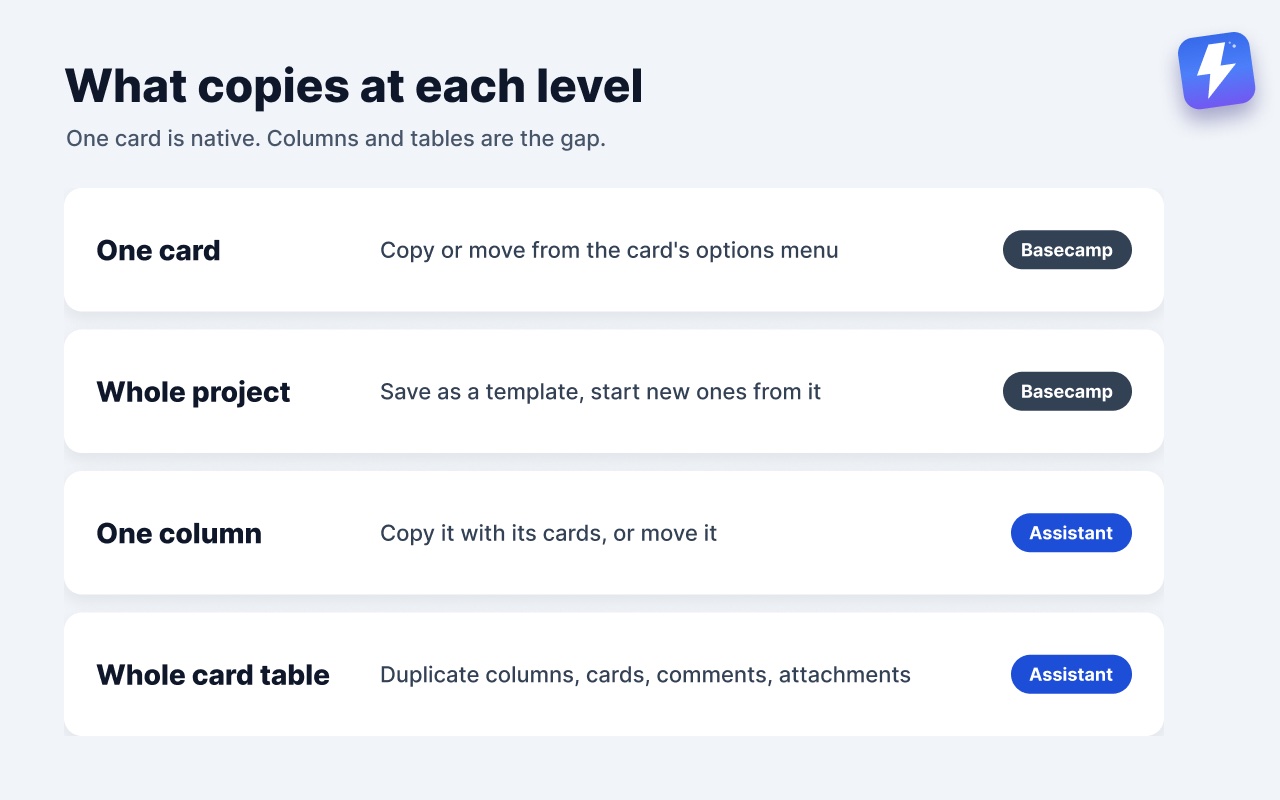
That part Basecamp handles on its own. A single card has copy and move actions built in, so nobody has to rebuild it by hand. Where people actually get stuck is one level up, when the thing they need again is a whole column or a whole board. This post covers the native way first, then what to do when one card isn’t the job.
Does Basecamp have a duplicate card button?
For a single card, yes. Card table cards carry their own copy and move actions, so a Basecamp duplicate card is a native job, not a workaround.
Open the card, open its options menu, and choose the copy or move option. Basecamp asks where the card should go and you pick the destination. Copy leaves the original in place and puts a second card where you sent it. Move takes the original with it and leaves nothing behind.
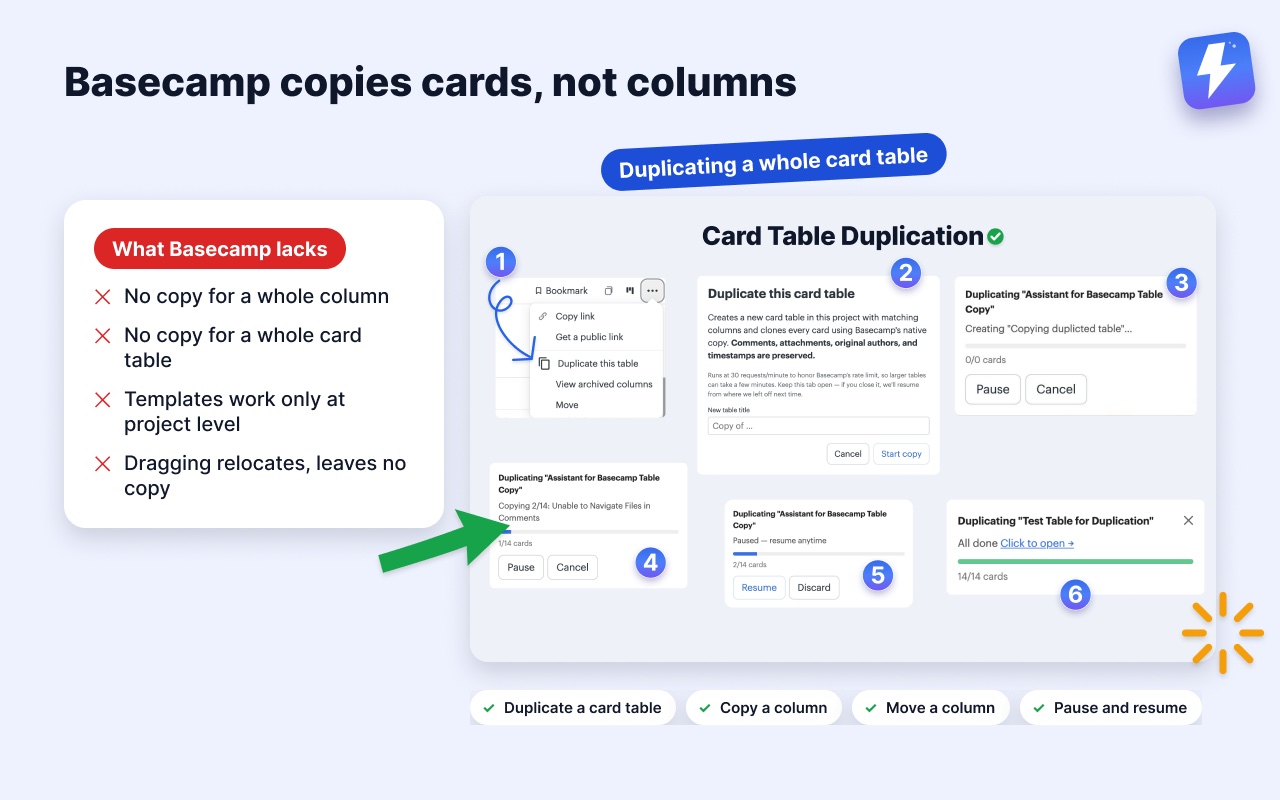
That’s one card at a time, which is fine when one card is what you need. What Basecamp doesn’t do is copy a set of cards, a whole column, or an entire card table. Project templates come closest, since saving a project as a template carries its card tables and to-do lists wholesale, but that works at the project level, not on one column inside a project you’re already in. Dragging isn’t it either: dragging a card between columns relocates it and leaves nothing behind.
So the gap is the column and the table, not the single card. Here’s how to work with both.
Keep a master card and copy it
Now that copying one card is a menu click, the useful habit is keeping something worth copying.
Say every new bug report should have the same five-line structure. Make one card called Bug template, write the structure into its notes, and leave it parked in a column. Each time a real bug comes in, copy that card and fill in the specifics on the copy. You never have to remember the format, and you’re copying from a known-good source instead of an old card that might have stale details in it.
This pairs well with card tables that already use a clear column setup. If you’re not deep into card tables yet, our complete guide to Basecamp card tables covers how columns and cards behave, and card table vs to-do list helps you decide which one your repeating work even belongs in.
What about duplicating a to-do?
A to-do isn’t a card, and the plain path is the quick one. Open the to-do, copy its notes, make a new to-do, paste them in, then set the assignee and due date on the new one.
If the item comes back on a schedule rather than at random, Basecamp’s own recurring to-dos are the better tool and there’s nothing to copy at all.
Use a project template for repeating work
If what you actually want is the same set of cards and lists every time you start similar work, you don’t want to copy one card at a time. You want a template.
Basecamp lets you save a project as a template, including its card tables and to-do lists. When you create a new project from that template, the whole structure comes with it: the columns, the cards in them, the to-do lists, the items. It’s the closest thing Basecamp has to copying a whole set of cards at once, just scoped to a whole project rather than to a column.
To set one up:
- Build a project the way you want every future one to look. Cards, lists, columns, all of it.
- Save it as a template (Basecamp’s project menu has the option to create a template, or to save an existing project as one).
- When you start similar work, create a new project from that template instead of from scratch.
This is the right tool when your repeating unit is a project: every client onboarding, every event, every sprint. It’s the wrong tool when you’re already inside a project and only want one column back, because making a whole new project for that is overkill. For a deeper walkthrough, see our guide on Basecamp templates and the card workarounds around them.
When one card isn’t the job
Assistant for Basecamp is our browser extension, and this is where it comes in. Not on the single card, which Basecamp already handles, but at the table and column level. There are three operations: copy a whole card table, copy one column along with its cards, or move a column. Each one runs into the same project or a different one, and each runs as a job you can pause and resume, which matters when the column holds a hundred cards.
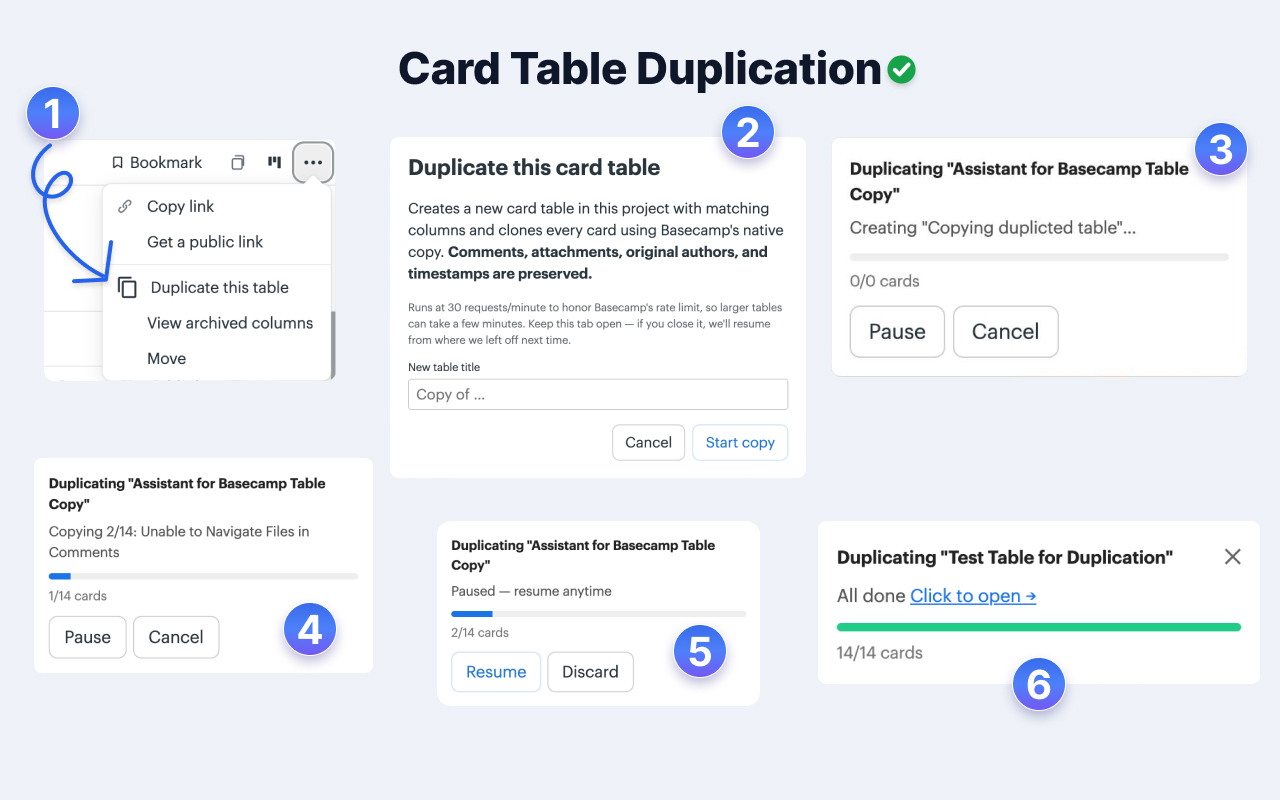
Pick “Duplicate this table” from a card table’s options menu and Assistant clones the entire table: columns, every card, comments, attachments, original authors, and timestamps, with live progress you can pause and resume. The card table duplication page covers all three operations and how each behaves within a project and across projects.
So the split is clean. One card is Basecamp’s job. A column or a whole table is the one Assistant takes off you. And because Assistant makes cards carry more, a copied column brings real structure with it. On cards and to-dos it adds custom fields with colored badges, tags, and reusable statuses, none of which Basecamp has natively, so your standard fields travel as proper fields rather than text you paste around.
You can also lean on automations that react to Basecamp events or a field change to set a field, attach a tag, assign people, or post a comment. Between copying columns and automations, most “I need this board again” work stops being manual.
One smaller thing that helps with repeating work: Basecamp’s own recurring to-dos carry a repeat icon in Assistant, so you can tell at a glance which items come back on their own and which ones you’d have to recreate.
It’s $29/month or $290/year for unlimited seats, only one admin pays, and there’s a 7-day free trial with no card needed. If it’s tables and columns you keep rebuilding by hand, that’s what it removes. The custom fields help doc is a good place to start.
The short version
Copying or moving one card is native Basecamp: open the card’s menu, choose the copy or move option, and tell it where the card should go. For the same structure every time, save the whole project as a template. When the thing you need again is a whole table or a whole column, Assistant for Basecamp copies a table, copies a column, or moves a column into the same project or another one. Every card inside comes with it, along with comments, attachments, fields, tags, and statuses.
Useful? Tell Google you want more of this.