How to Track Overdue To-dos in Basecamp
If you run more than a couple of Basecamp projects, overdue to-dos are easy to lose. A task slips past its due date, sits quietly in whatever list it belongs to, and nothing pulls it forward. A lot of people assume Basecamp has no way to see every late item in one place. It does, and it’s good. This guide shows you the built-in report that lists every overdue to-do across all your projects, the fastest way to reach it, and how Assistant for Basecamp helps you act on what you find.
Does Basecamp show overdue tasks? Yes, in Reports.
Basecamp has a built-in Overdue to-dos report. It lives under Reports, and a lot of people never notice it because Reports is tucked away in the top menu.
Here’s the fast way to get there: press Cmd + J (Mac) or Ctrl + J (Windows) to open Basecamp’s jump menu, click Reports, then choose Overdue to-dos.

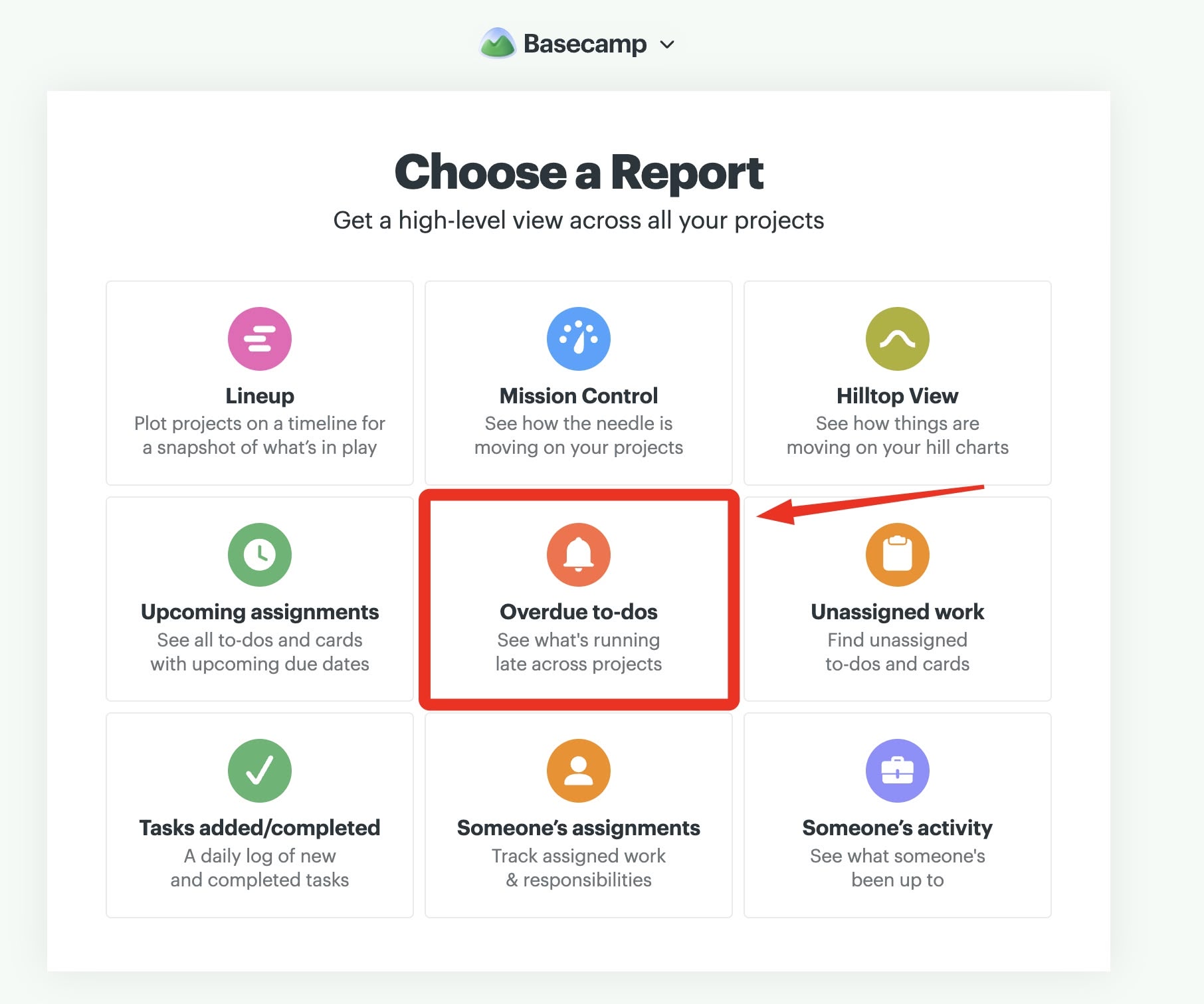
The report pulls every past-due to-do across all your projects onto one page and groups them by exactly how late they are: one day overdue, two days overdue, three days, and so on. Each item shows who it’s assigned to and its due date, and you can click straight through to the to-do. No setup, nothing to install.
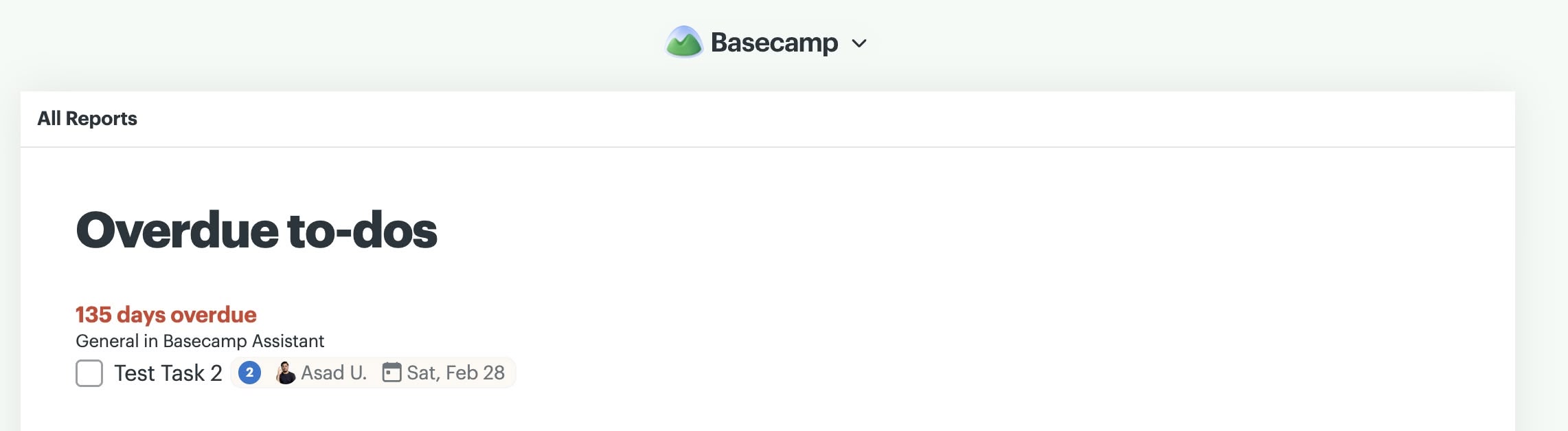
What the native report does well, and where it stops
Credit where it’s due: the Overdue to-dos report answers the core question well. It’s cross-project, it’s sorted by severity, and it costs nothing. If you didn’t know it existed, that click alone is the takeaway.
Two things it doesn’t do:
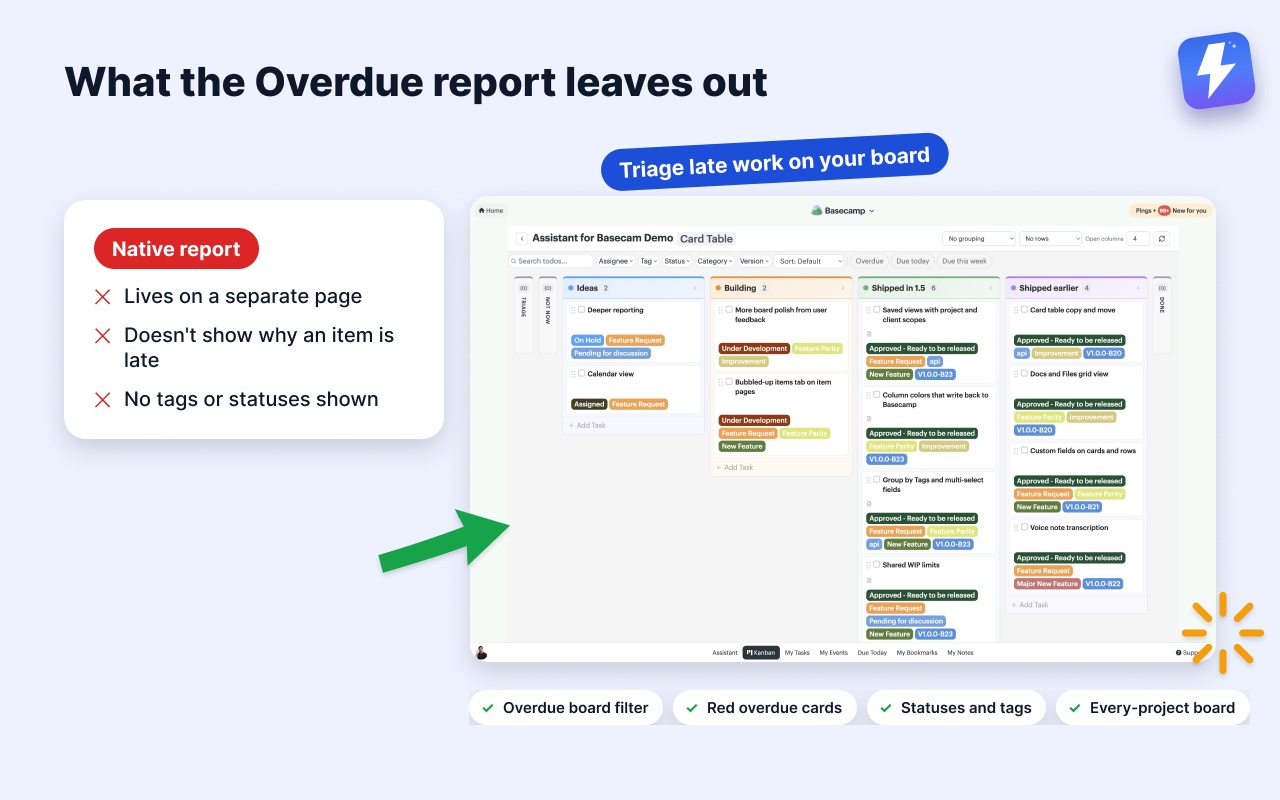
- It’s a separate page you visit, not part of your board. You leave whatever you’re working on, open Reports, scan, and go back. It’s a check-in, not something that lives where you plan your day.
- It doesn’t carry your workflow context. The report tells you a to-do is three days late. It can’t tell you why: blocked, waiting on a client, deprioritized. And it doesn’t show the tags or statuses you might use to organize work. For triage, the reason is often the whole point.
Going further with Assistant for Basecamp
Assistant for Basecamp is a browser extension that adds a layer on top of Basecamp. It doesn’t replace the Overdue report. It fills the two gaps above.
- Triage overdue items on your board, in context. Assistant’s Kanban board has a quick filter for Overdue and Due today, so you can narrow the board you’re already looking at down to what’s late without opening a separate report. Overdue cards are flagged in red so they stand out at a glance. That board opens over one project or over every project in your account, so the cross-project view the report gives you is available where you plan your day too.
- Read the dates without second-guessing them. A completed to-do never shows as overdue, so finished work stops cluttering the view. And a due date in a different year shows the year, which is how you spot the item that’s been late since last October rather than last week.
- Mark why something is late. Add statuses and tags to your to-dos, so a late item reads as “Blocked, waiting on client” instead of just “3 days overdue.” That turns a list of late work into a queue you can actually act on.
To be straight about it: for a plain list of everything overdue, Basecamp’s own report is all you need, and it costs nothing. Assistant earns its place when you want to work late items where you plan your day, and annotate the ones that are stuck.
A simple routine for staying ahead of deadlines
The tool only helps if it’s a habit. A rhythm that works:
- Open the Overdue report once a day. Cmd + J → Reports → Overdue to-dos. Start from the most-overdue and work down.
- Decide, don’t just read. For each item, pick one action: it’s done (close it), the date was wrong (fix it), or someone needs a nudge (send one).
- Annotate the blockers. If an item is late because it’s waiting on someone, give it a status that says so. Next time you look, the reason is right there.
- Watch the oldest bucket. Anything weeks overdue is usually stale, blocked, or should be deleted. Long-overdue items rarely fix themselves.
What about reminders and notifications?
A due date passing isn’t something Basecamp notifies anyone about, which is exactly why overdue work slips. The Overdue report is a pull view: you go look at it. Pair it with Basecamp’s own notifications for things aimed at you, and with Assistant’s unread highlight for catching what changed. Between a daily glance at the report and a habit of annotating blockers, late work stops being a surprise.
Getting started
Assistant for Basecamp is a browser extension for Chrome and Firefox. It installs into your browser and adds its features directly inside Basecamp 5. Pricing is $29/month or $290/year for unlimited seats, one admin pays and the whole team gets the features, with a 7-day free trial and no card needed.
You don’t need it to use the Overdue report, that’s built into Basecamp. But if you want to triage late work on your board and mark why things are stuck, install the extensioninstall the extension and open any project. Setup notes are in our getting started guide.
The short version
Basecamp already has an Overdue to-dos report that lists every past-due item across your projects, grouped by how late each one is. Reach it fast with Cmd + J → Reports → Overdue to-dos. It’s a strong catch-up view. When you’d rather triage late work on your board than in a separate report, and mark why something is late, Assistant for Basecamp adds an Overdue filter, custom statuses, and a board that can span every project, on top of what Basecamp already gives you.
Useful? Tell Google you want more of this.