How to Spot Unread Updates in Basecamp
You open Basecamp after a day away and the question is always the same: what actually changed? Something is basecamp unread somewhere, but the only way to find it is to click into each project, each to-do list, each message, and look for anything that feels new. Basecamp tells you that there’s activity. It rarely shows you where. This guide covers what Basecamp gives you natively for catching up, where it leaves you guessing, and how to make new activity visible right on the items themselves.
How do you see unread updates in Basecamp natively?
Basecamp has a few built-in ways to catch up, and they’re genuinely useful:
- New for you, your personal notification inbox (Basecamp 5’s replacement for the Hey! menu). Things directed at you: @mentions, assignments, replies to threads you’re in.
- Latest Activity / the Lineup, a reverse-chronological feed of what happened across projects you can access.
- Per-project activity, open a project and you can see recent changes inside it.
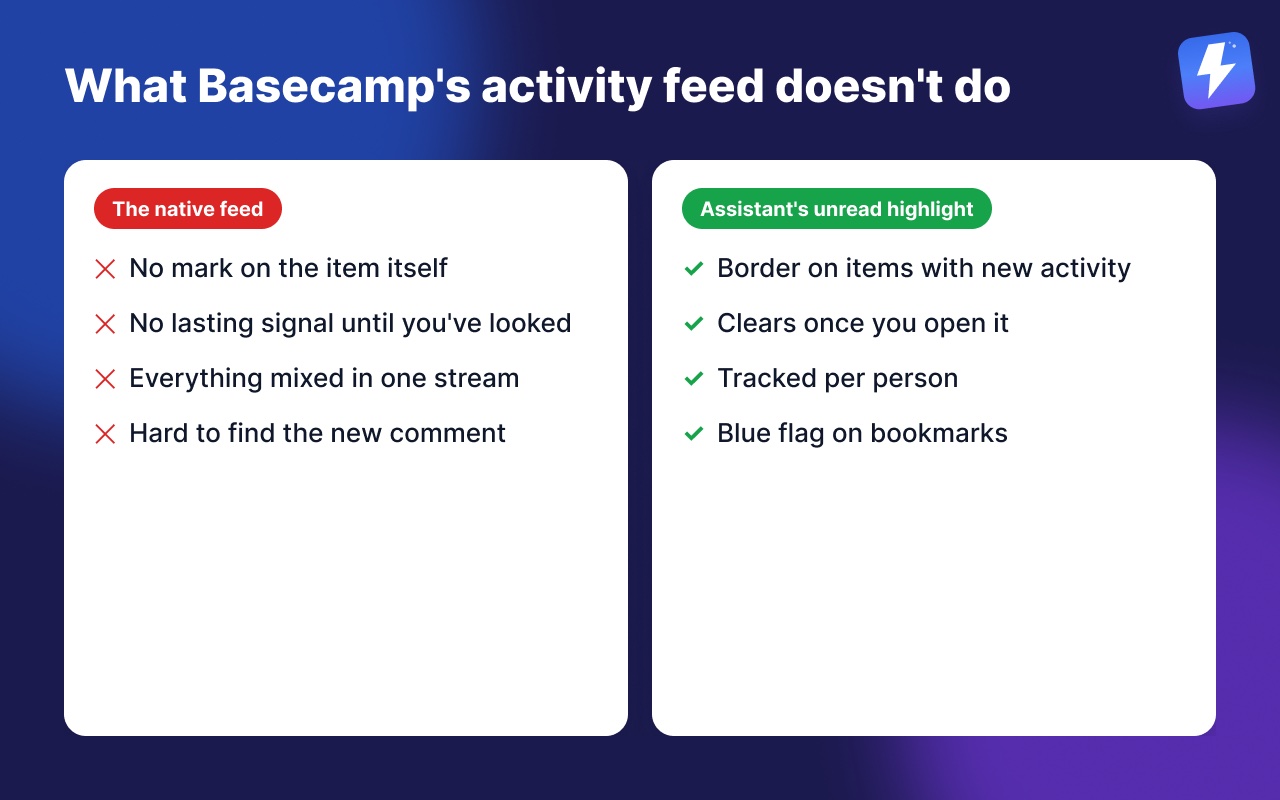
The gap is this: these feeds tell you something happened, but they don’t mark the item itself. You read “Sara commented on Homepage copy” in a feed, click through, and then you’re hunting for which comment is new on a thread with twenty replies. And once you’ve glanced at the feed, there’s no lasting signal on the to-do or card to say “this one still has activity you haven’t looked at.” The feed scrolls on. The work doesn’t carry a flag.
That’s fine for a small project. On a busy account with a dozen active projects, “what’s basecamp unread” turns into ten minutes of clicking around before you’ve even started working.
What gets lost in Basecamp’s native activity feed
A feed is a stream. Streams have two weaknesses for catching up:
- They mix everything together. A typo fix on a comment sits next to a client approving a deliverable. Both are “activity.” Only one matters before your standup.
- They don’t stick to the work. When you’re looking at a to-do list to plan your day, nothing on that list tells you which items moved while you were gone. To know, you open each one.
So the honest summary of Basecamp native: New for you is great for things aimed at you, and the activity feed is great for a quick scan of everything. What’s missing is a signal that lives on the item and survives until you’ve actually seen it. That’s the piece we added.
How to make unread items visible on the work itself
Assistant for Basecamp is a browser extension that runs inside Basecamp and adds a durable signal built specifically for “what changed since I was last here.” Your projects stay exactly as they are; this just changes what you can see.
Unread highlight, a border on anything with new activity
When a to-do, card, or message has activity you haven’t seen yet, Assistant draws a border around it right where it lives. You don’t open it to find out it changed. You see the border on the list, scan down, and your eye lands only on the items that need you. The highlight ships alongside the rest of Assistant’s small fixes, collected on the everyday enhancements page.
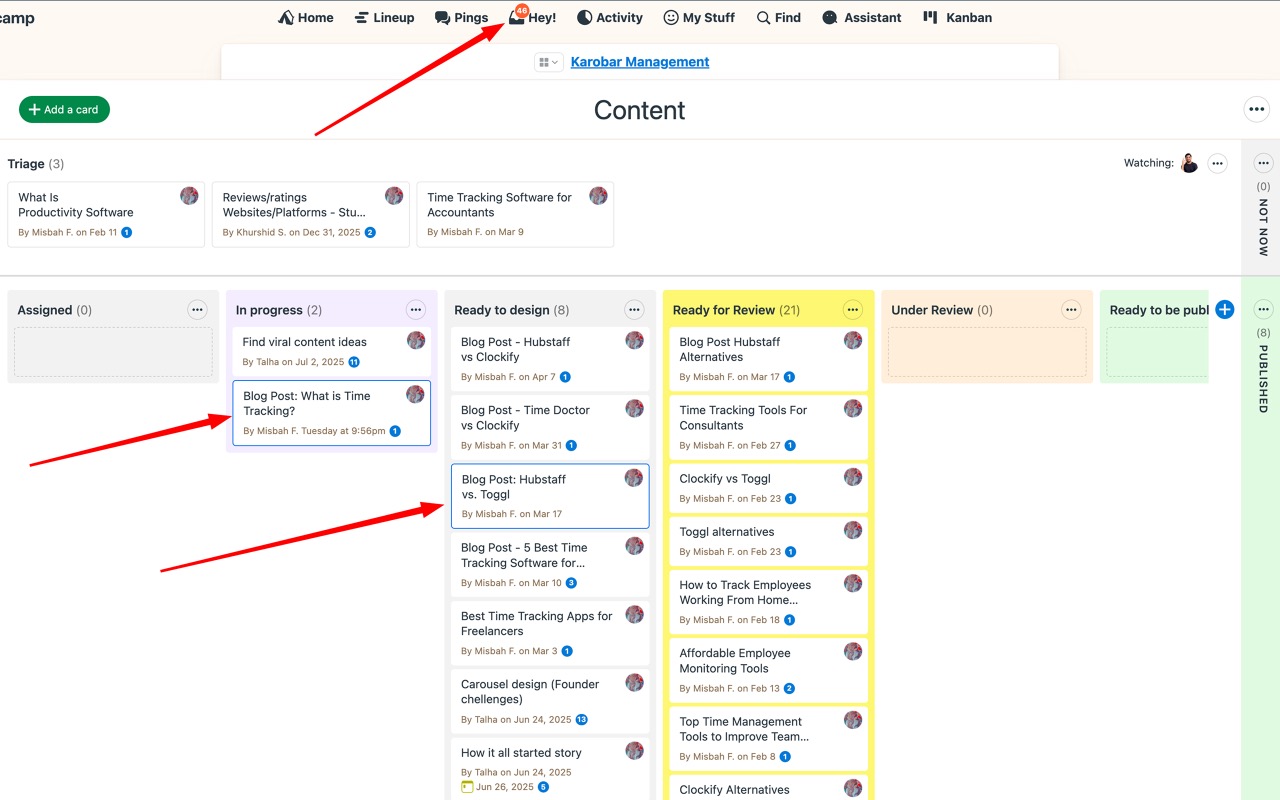
This is the difference between a feed and a flag. The feed says “something happened over there.” The highlight says “this item, the one you’re looking at, has something new.” Once you open the item and catch up, the border clears. It tracks per person, so your unread is yours, not a shared “seen by the team” state.
For the full behaviour and how the border is calculated, see the unread highlight help doc.
Flags on the items you marked yourself
Basecamp lets you bubble something up or bookmark it so you can come back to it later. Finding those again usually means remembering where you put them. Assistant marks them for you instead: anything bubbled up or bookmarked carries a small blue flag, on the native to-do list, on the item’s own page, and on its card on the board. Your own marked work turns up in the same scan you already do for new activity.
What about Basecamp’s own notifications? Do I still need them?
Yes, and you should keep using them. New for you is still the right place for things directed at you personally: someone @mentions you, assigns you a to-do, or replies in a thread you’re on. Assistant doesn’t replace that, and it shouldn’t.
The split is simple:
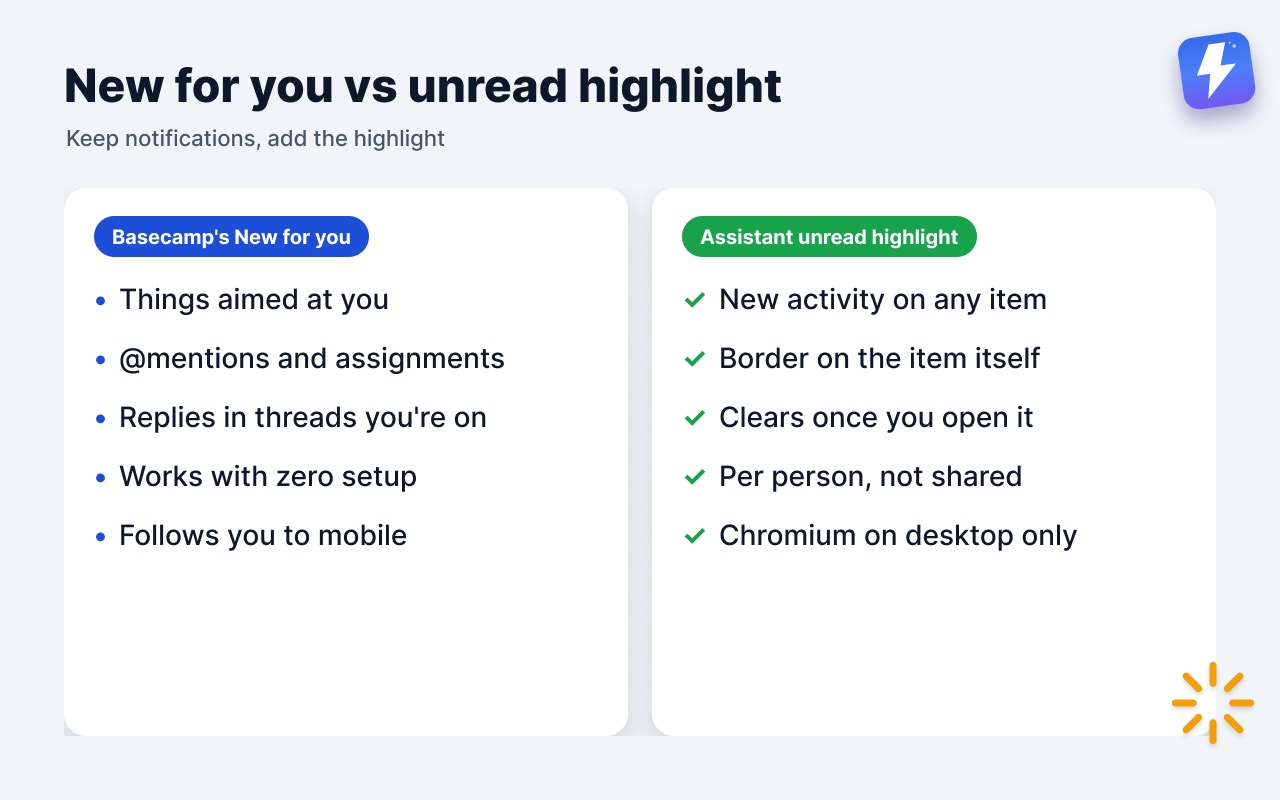
- Basecamp’s New for you, things aimed at you.
- Assistant unread highlight, new activity on any item across the project, whether or not it was aimed at you.
A teammate moving three cards forward won’t @mention you, so it never reaches New for you. But if you’re tracking that work, you want to know it moved. That’s the case the highlight covers and notifications don’t. If you want to get more out of the native side too, we wrote a separate guide on staying on top of Basecamp notifications.
Where the native tools still win
Two honest points, because this isn’t a clean sweep:
- Cross-account reach. Basecamp’s New for you and email notifications follow you everywhere, including mobile and the Basecamp app. Assistant is a browser extension, so the unread highlight appears when you’re working in Basecamp in desktop Chrome, Firefox or another Chromium browser, not in the native mobile app.
- No setup for things aimed at you. Basecamp already routes @mentions and assignments to you with zero configuration. That part works well out of the box, and Assistant leans on it rather than rebuilding it.
If most of your day is on mobile, Basecamp’s own notifications carry more of the load. If you do your catching-up at a desk, the highlight is what turns “click into everything” into “scan and stop.”
A faster way to clear your unread
Once you can see what’s new, the next step is acting on it without ceremony. A few features pair naturally with catching up:
- Filter the board by assignee, or by tag and status, so only your own work is on screen. The unread borders then show you what changed inside that slice.
- Catch anything that slipped past its due date in Basecamp’s built-in Overdue to-dos report.
Assistant is one flat price for the whole team: $29/month or $290/year, unlimited seats, with a 7-day free trial and no card needed. One admin subscribes and everyone on that Basecamp account gets the highlight.
The short version
Basecamp’s Hey! menu and activity feed tell you something happened; they don’t mark the work that changed or hold that mark until you’ve seen it. Install Assistant for BasecampInstall Assistant for Basecamp, and every to-do, card, and message with activity you haven’t read gets a border you can spot from the list. Keep Basecamp’s notifications for things aimed at you, and let the unread highlight catch everything else.
Useful? Tell Google you want more of this.