How to Stay on Top of Basecamp Notifications
There are two ways Basecamp notifications go wrong. Either you get pinged for everything and start ignoring all of it, or you turn the noise down so far that you miss the one reply that actually needed you. Most people swing between the two and never land in the middle. This guide covers what Basecamp gives you natively to control notifications, how to set New for you and your preferences so the right things reach you, and where a browser extension helps you scan what changed without waiting for a ping at all.
Where do Basecamp notifications come from?
Basecamp routes notifications through one place: New for you. In Basecamp 5 it’s the button at the top right of every screen (it replaced the old Hey! menu), and it’s your personal inbox for anything aimed at you. It collects:
- @mentions, when someone tags you in a comment, message, or to-do
- assignments, when someone gives you a to-do or a card
- replies in threads you’re already part of
- check-in answers and other items you’re subscribed to
The key word is you. New for you is deliberately narrow. It does not show every change across your projects. It shows the things Basecamp thinks were directed at you personally. That’s a good default, because it means the panel stays small enough to actually clear.
Outside New for you, Basecamp also sends notifications by email and through push on the mobile app, governed by the same underlying preferences. So when you change a setting, you’re usually changing it across New for you, your inbox, and your phone at once.
How do I change my Basecamp notification settings?
Your notification controls live in your personal profile, not in any single project. Click your avatar in the top right, then open your profile, and look for the notification or “when you’re notified” section. From there you can shape the noise in a few ways.
The most useful control is work hours and days off. Basecamp lets you tell it when you actually work, and it holds notifications outside those hours so you’re not pinged at 11pm. If you only set up one thing, set up this one. It does more for your sanity than muting individual threads ever will.
You can also manage notifications per item. Open any message, to-do, or card and you’ll see who’s subscribed to it. Subscribers get notified on new activity; everyone else stays quiet. So if a thread is loud and not yours, unsubscribe from it. If a thread matters and you keep missing it, subscribe yourself even if nobody tagged you. This per-item subscription model is the real lever in Basecamp, more than any global on/off switch.
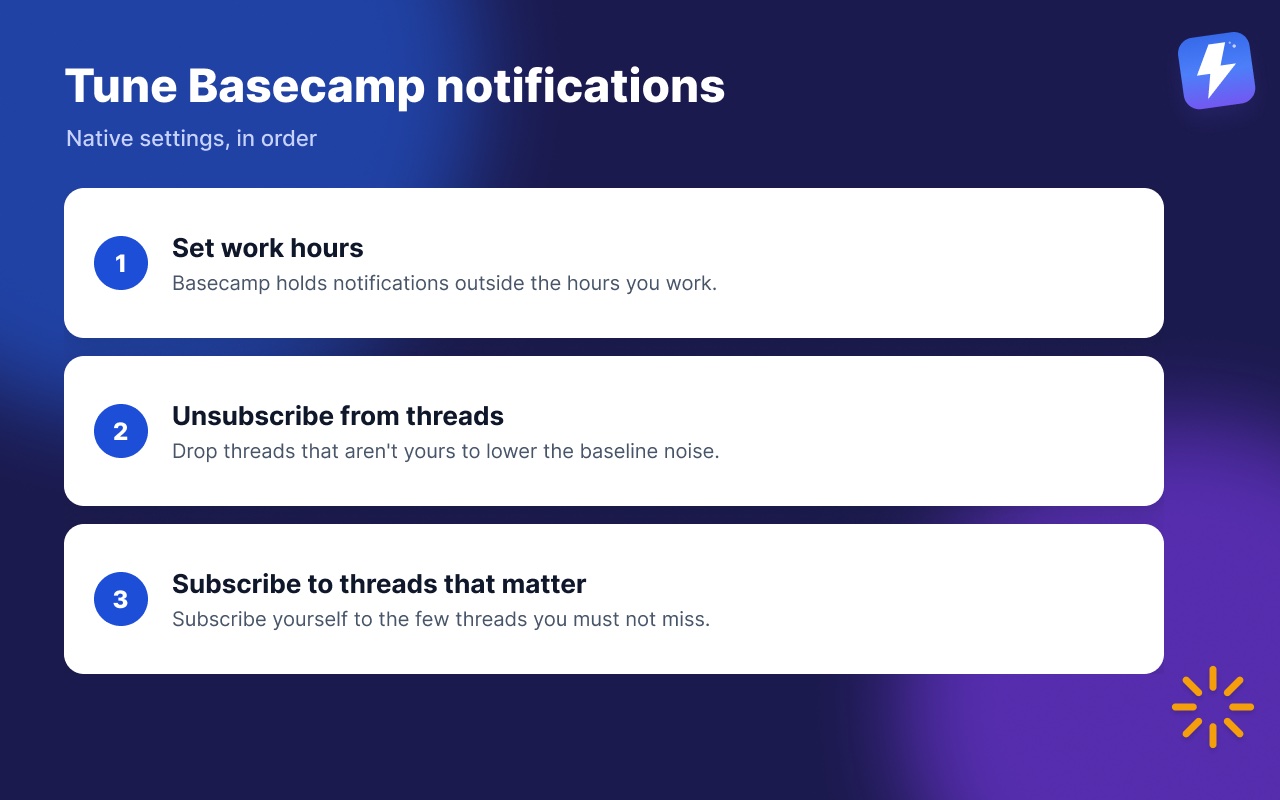
A short way to think about your Basecamp notification settings:
- Set work hours so nothing reaches you off the clock.
- Unsubscribe from threads that aren’t yours to lower the baseline noise.
- Subscribe yourself to the handful of threads you must not miss.
Why New for you isn’t the whole picture
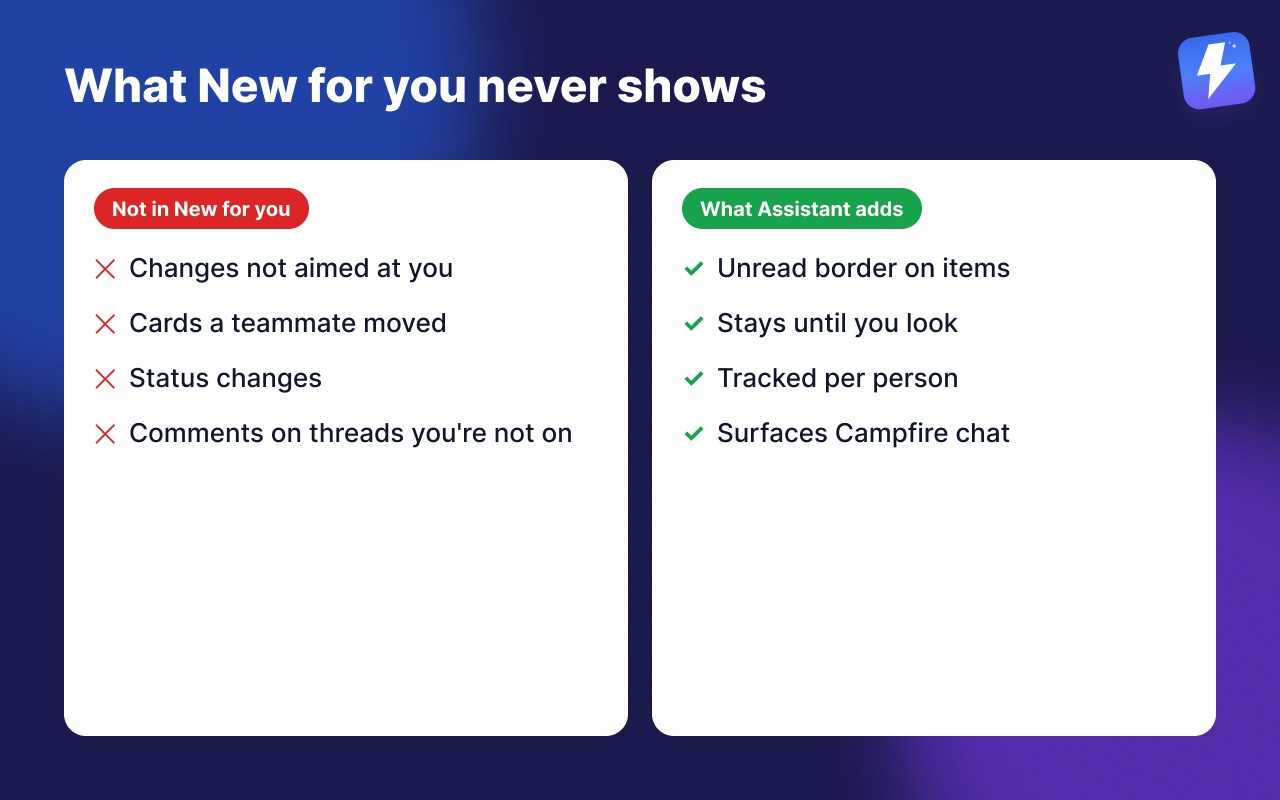
Here’s the honest gap. New for you is excellent at “what was aimed at me.” It’s silent on “what changed that I should know about anyway.”
A teammate moving three cards across a board won’t @mention you. A status flipping from blocked to in-progress won’t assign you anything. A comment landing on a thread you’re not subscribed to never reaches New for you. None of that is a flaw, it’s the design. New for you is a personal inbox, not a project monitor. But it means there’s a whole layer of project movement that notifications, by definition, will never surface.
So you end up doing the thing everyone does: you open each project and click around looking for what’s new. The notification system handled the items pointed at you. The rest you find by hand.
How to scan what changed without waiting for a notification
Assistant for Basecamp is a browser extension that runs inside Basecamp and fills exactly that gap. It doesn’t touch New for you or replace native notifications, and nobody moves to a second tool. It adds ways to see project movement that notifications never report.
Unread highlight puts a flag on the work itself
When a to-do, card, or message has activity you haven’t seen, Assistant draws a border around it right where it lives in the list. You don’t wait for a ping and you don’t open each item to check. You glance at the list and your eye stops on the bordered ones. Both the highlight and the Campfire notifications below are part of Assistant’s everyday enhancements.
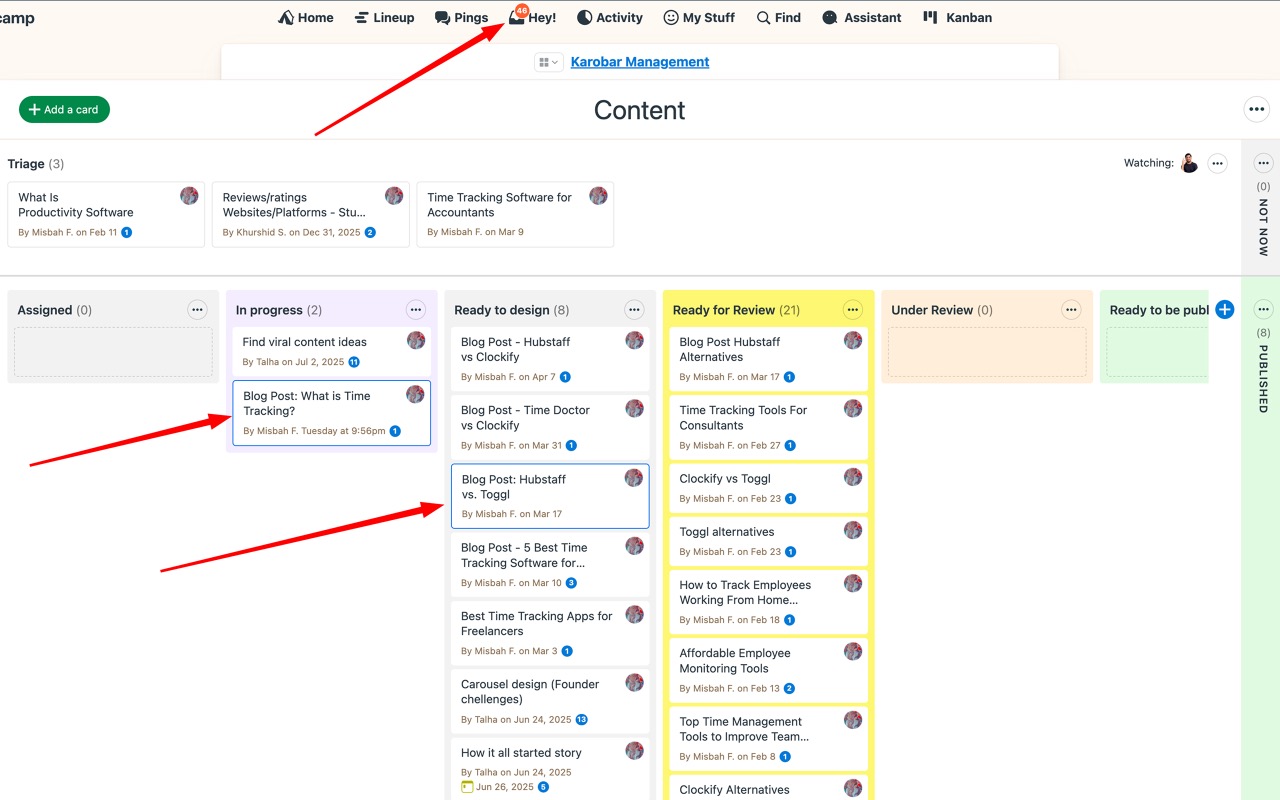
This is the difference between a notification and a flag. A notification fires once, then scrolls out of your inbox. The highlight lives on the item and stays there until you’ve actually looked. It tracks per person, so your unread is yours, not a shared “the team has seen this” state. Open the item, catch up, and the border clears. Full behaviour is in the unread highlight help doc, and we wrote a dedicated guide on spotting unread updates in Basecamp.
Campfire notifications
If your team uses Campfire (Basecamp’s group chat), Assistant can surface new Campfire messages so a fast-moving chat doesn’t get buried. Basecamp’s own Campfire pings are easy to miss when you’re heads-down in a to-do list. This keeps the chatter visible without you tabbing back and forth.
Native notifications versus the extension: who wins where
This isn’t a clean sweep, so here are the honest trade-offs.
Basecamp’s notifications win on reach. New for you, email, and push follow you everywhere, including the mobile app and any browser. Assistant is a browser extension, so the unread highlight and Campfire notifications appear when you’re working in Basecamp in desktop Chrome, Firefox or another Chromium browser, not in the native mobile app. If most of your day is on your phone, native notifications carry more of the load.
Basecamp wins on zero setup for things aimed at you. @mentions and assignments route to you with no configuration, and Assistant leans on that rather than rebuilding it. Keep using New for you for personal items. That’s what it’s best at.
The extension wins on project-wide awareness at a desk. Anything that changed but wasn’t pointed at you, the layer notifications structurally ignore, is exactly what the highlight catches. If you do your catching-up at a desk, that’s the part that turns “click into everything” into “scan and stop.”
The clean split:
- Basecamp’s New for you for things aimed at you.
- Assistant unread highlight for new activity on any item, whether or not it was aimed at you.
After you spot it, clear it faster
Seeing what changed is half the job. Acting on it without ceremony is the other half, and a few features pair naturally with catching up:
- Scope a board down to your work using filtering and grouping so the unread set is already narrowed to you.
- Catch what slipped past its due date in Basecamp’s built-in Overdue to-dos report.
Assistant is one flat price for the whole team: $29/month or $290/year, unlimited seats, with a 7-day free trial and no card needed. One admin subscribes and everyone on that Basecamp account gets the highlight and Campfire notifications.
The short version
Tune your Basecamp notifications natively first: set work hours so nothing pings you off the clock, then subscribe and unsubscribe per thread so New for you only carries what’s aimed at you. For everything that changes without a notification, install Assistant for Basecampinstall Assistant for Basecamp and let the unread highlight and Campfire notifications show you project movement New for you was never built to surface.
Useful? Tell Google you want more of this.